At Salesdorado, we’ve tested a whole bunch of meeting scheduling tools, but if we had to keep just one, in our view it would be Calendly. Simple to set up, smooth to use and ultra-reliable when handling a high volume of meetings, it’s the tool that put an end to the endless email back-and-forth just to find a time slot.
Its free plan is already very complete, its paid plans stay affordable and its integration ecosystem makes it easy to drop into any workflow, whether for sales, recruiting or customer service. No surprise it has become the undisputed market leader.
Scheduling meetings with Calendly
Calendly’s strength is its ability to turn booking a meeting into a smooth process, with no endless email back-and-forth.
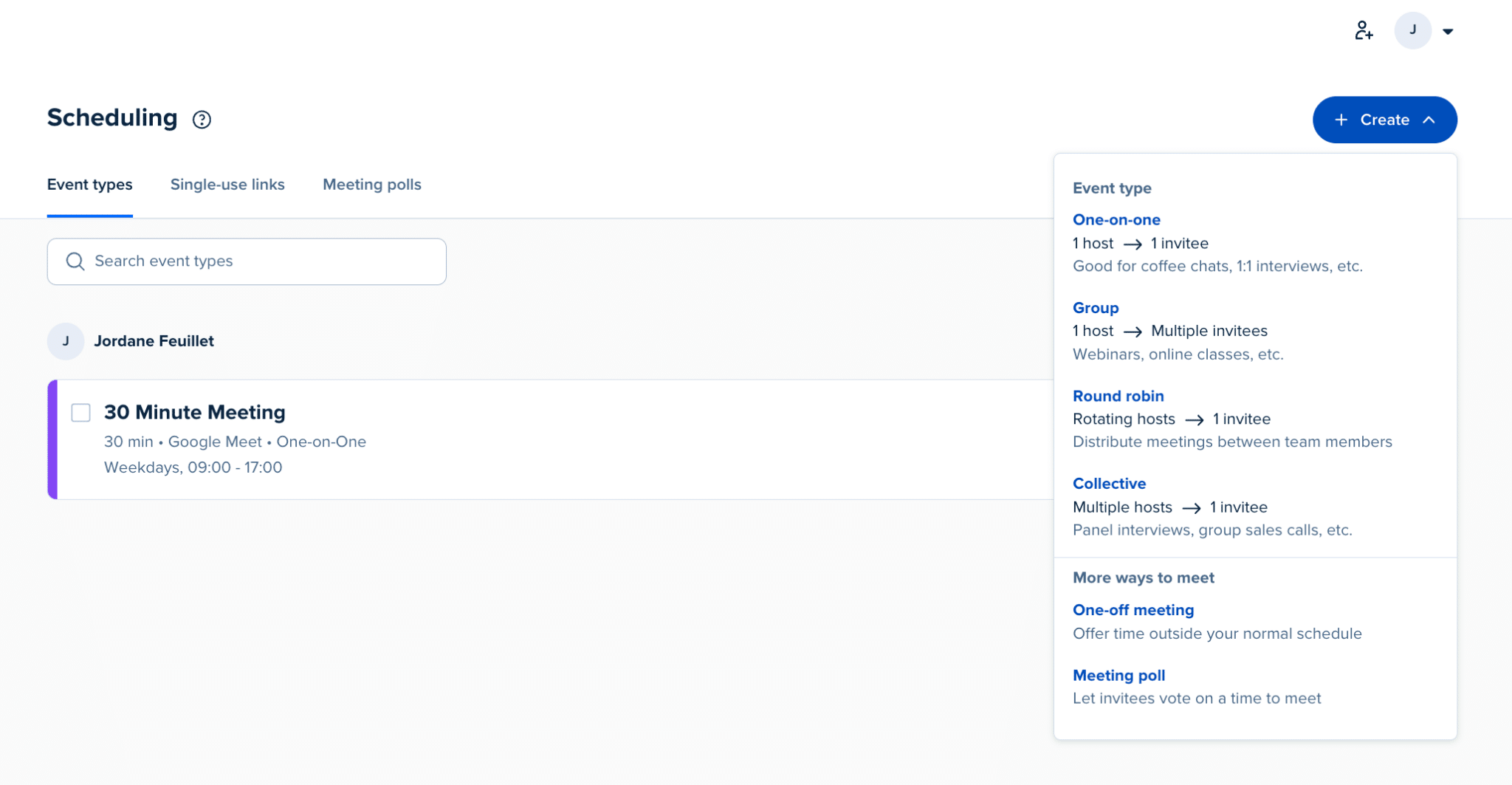
It all starts with creating one or more event types: you set the duration, the location, in person or video call, the available slots and the minimum and maximum booking windows. Each event can be configured for a specific use case: discovery call, product demo, internal meeting, job interview.
Calendly offers a wide range of formats: one-on-one events, group meetings, Round Robin to spread meetings across several team members, or collective events where several hosts take part at the same time.
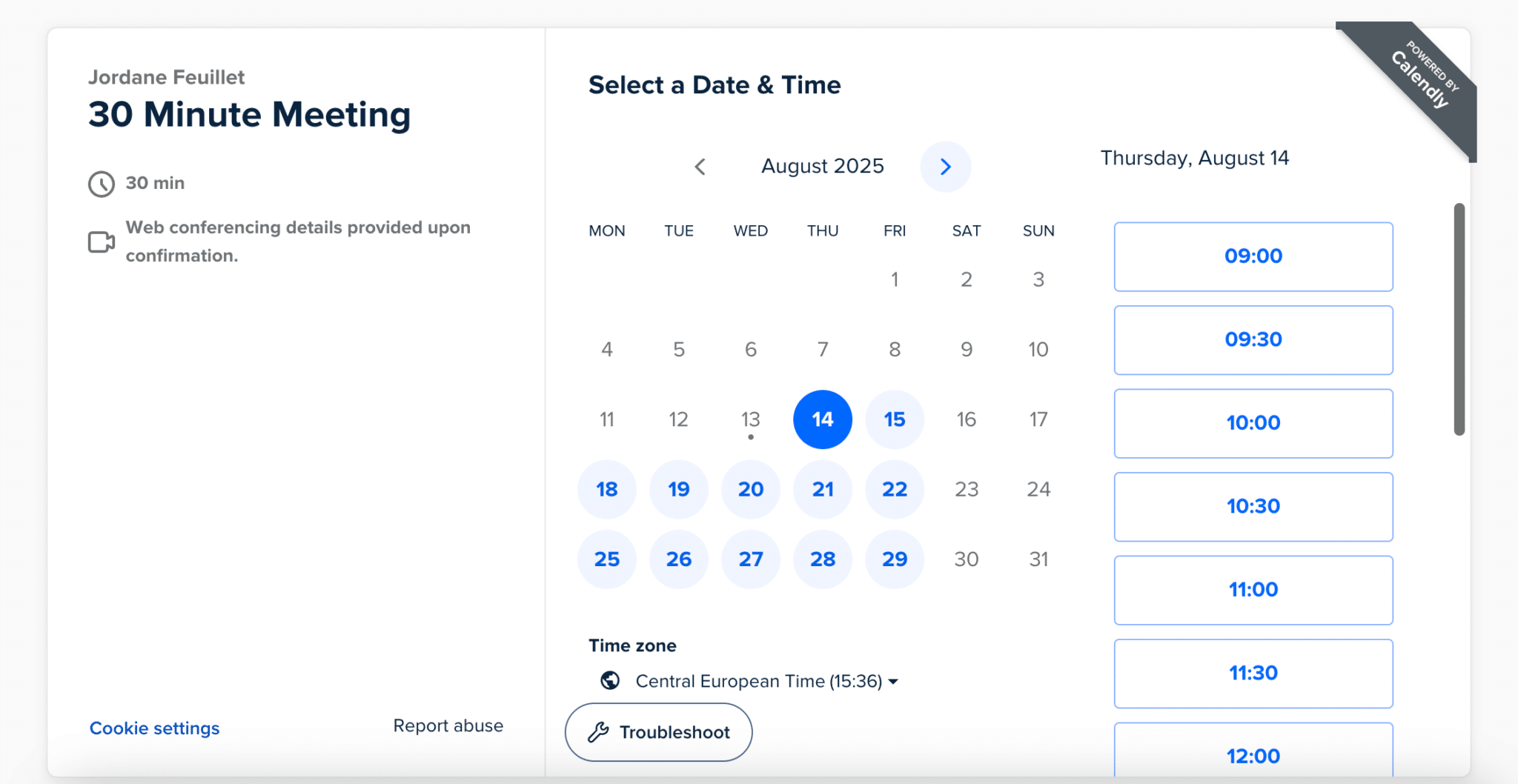
Once the event is set up, Calendly generates a unique link you can share with your invitees, by email, on your website or through your social channels. When they click it, they land on a page where they pick the date and time that suit them from your available slots. The time zone is adjusted automatically to avoid any confusion, and the booking is confirmed in a single click, with no sign-up.
Calendly also provides a full library of preconfigured workflows, designed to automate all the communication around a meeting.
For example, you can:
- Send a confirmation email as soon as someone books.
- Schedule automatic reminders one or two days before to cut down on no-shows.
- Send a thank-you message after the meeting.
- Share additional resources: presentation link, documentation, form.
- Follow up with a participant who didn’t show up.
- Offer a new time slot.
- Send a reminder text message to the host.
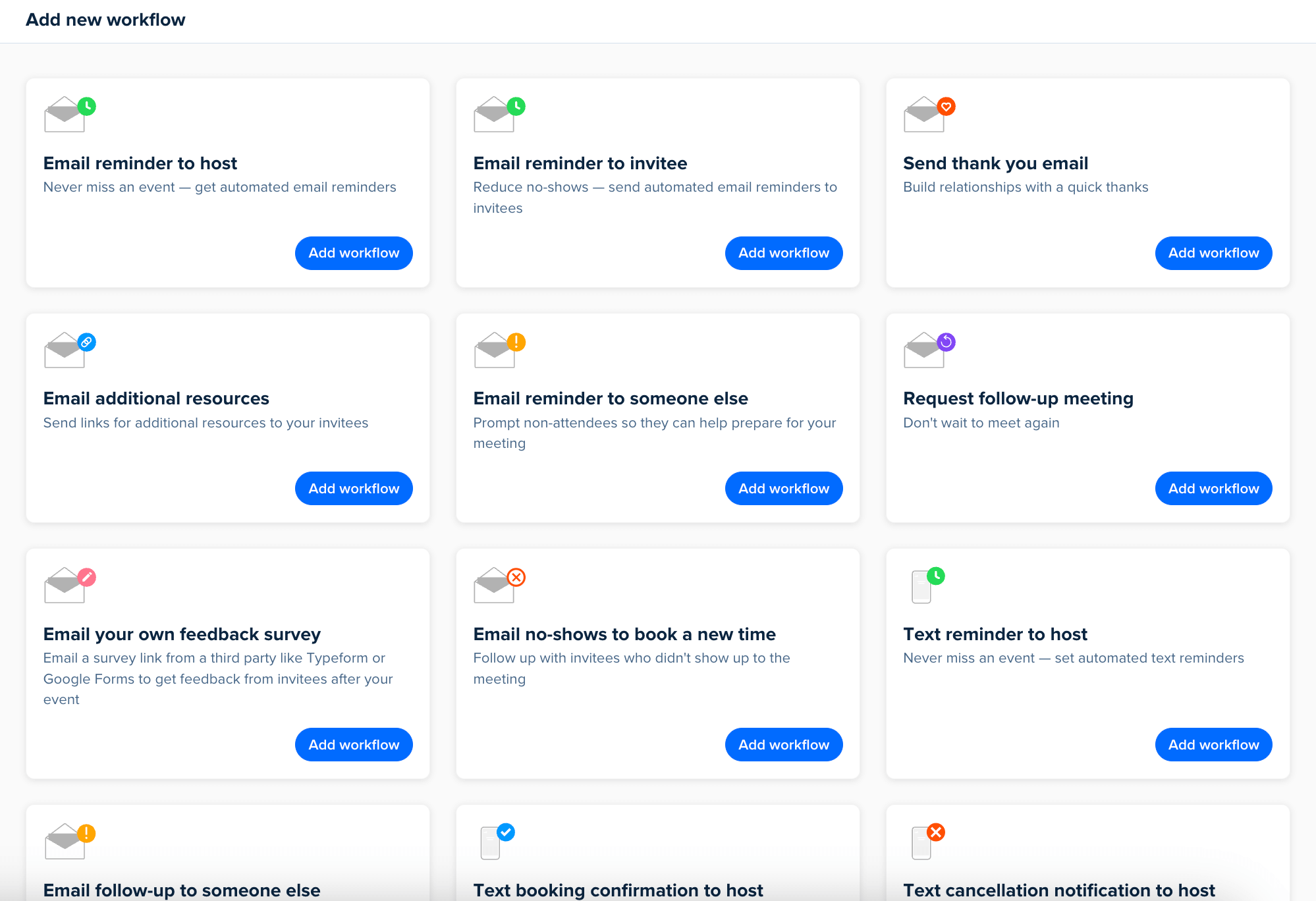
Every template is fully customizable (content, variables and timing included). You just pick the workflow that matches your use case and adapt it in a few clicks.
On the user experience side, everything is built to minimize friction. The invitee receives a link to your Calendly page, picks a slot from your availability, fills in a form if needed, and the meeting is automatically added to both calendars. No more juggling schedules: time zones are detected automatically for each participant.
Calendly remains a benchmark for sending a link, letting the prospect choose their slot and automating everything around it. You save time, you avoid pointless back-and-forth and you keep control over the format and length of your meetings. On our side, we recommend pairing it with a solid internal process so your calendar doesn’t turn into a supermarket open 24/7.
Managing availability with Calendly
Calendly lets you cleanly split your working hours into reusable schedules. You can define several time ranges, for example prospecting in the morning and demos in the afternoon, and apply them to specific event types, which avoids conflicts and limits the opening of non-strategic slots.
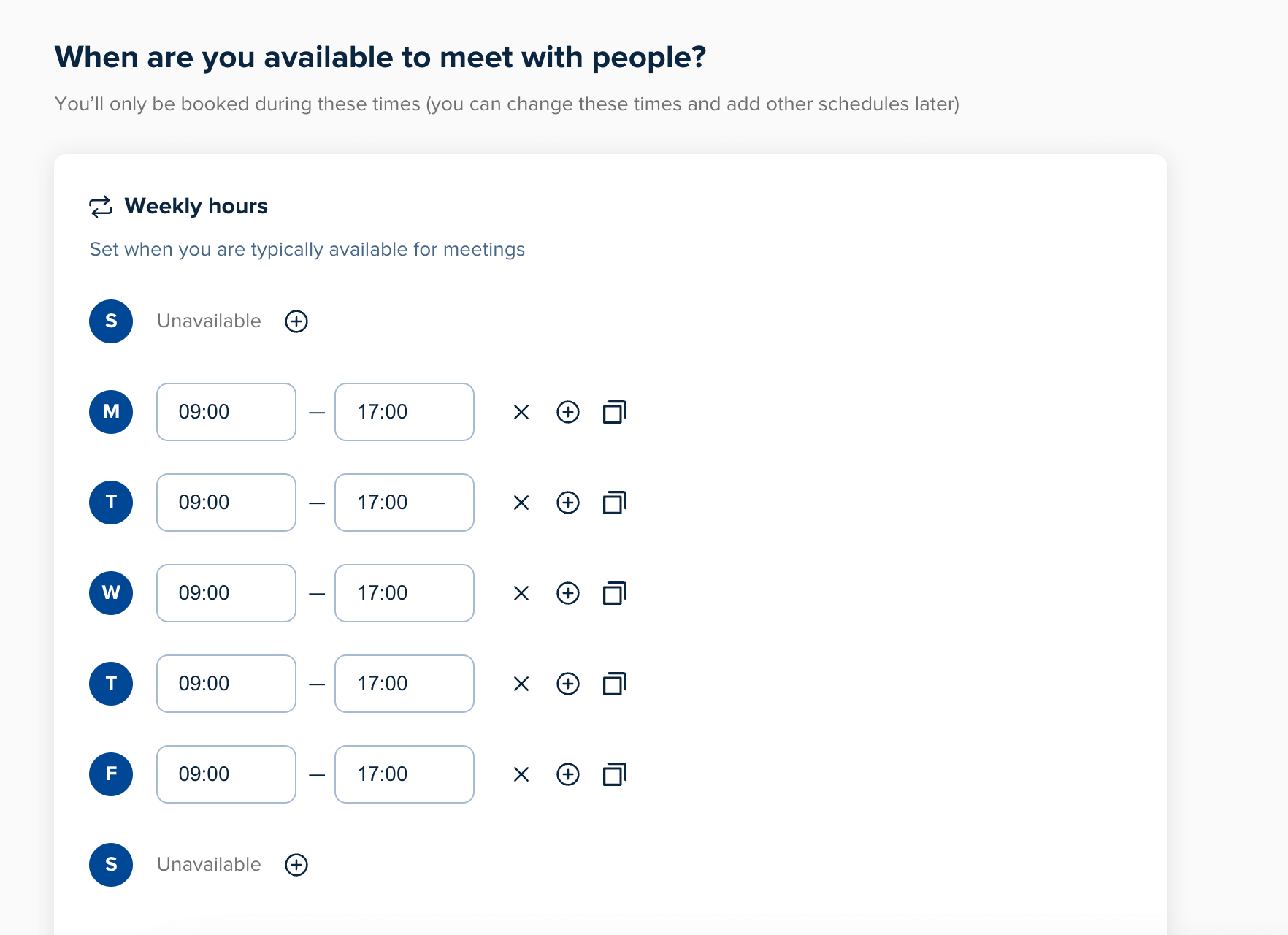
Each schedule supports fine-grained settings. You can require a minimum notice before booking, add buffers (extra time) before and after meetings, and cap the number of meetings per day to keep calendars from overheating.
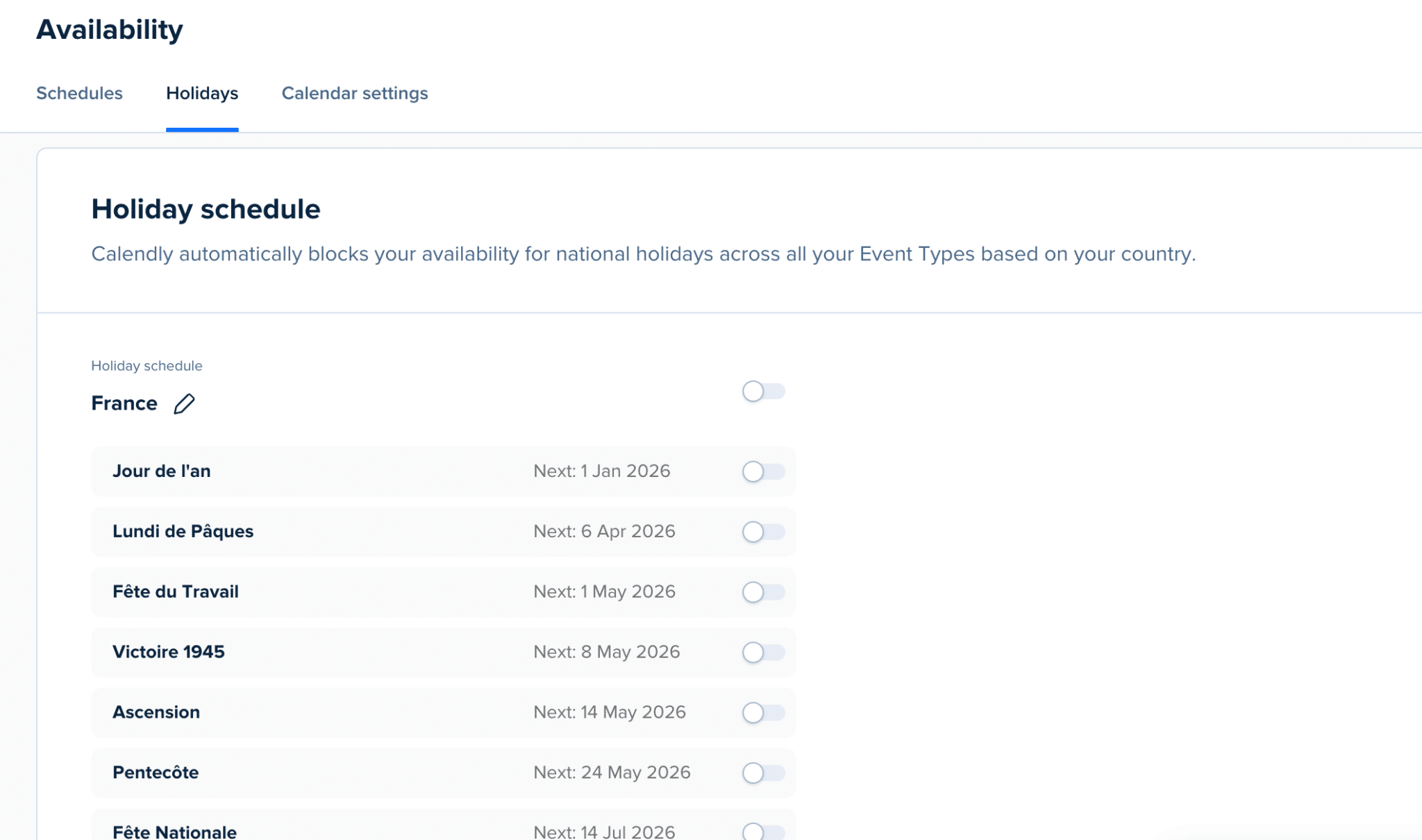
Exceptions and special days are handled in the same place. In two clicks you block vacations, exceptional closures and offsite days, or on the contrary open one-off slots for a meeting booking campaign.
In terms of formats, Calendly covers team use cases. Pooled availability computes the overlap between calendars for collective events, and Round Robin automatically distributes meetings based on availability or load balancing, with the option to set priorities for each team member.
One last key point: you can set different rules per event type. A 15-minute first call can be wide open with few constraints, while a 45-minute demo follows a longer notice period, a mandatory buffer and a daily cap.
Calendar sync
Calendly is designed to eliminate the risk of double bookings or forgotten meetings, thanks to real-time sync with your main calendars. The tool connects easily to Google Calendar, Outlook, Microsoft 365 or iCloud, so you can centralize all your availability in one place.
Once sync is enabled, Calendly automatically detects your free slots and blocks the ones already taken. Every new booking made through Calendly is immediately added to your calendar, with all the information you need to prepare for the meeting.
Setup is very simple: during onboarding, you just choose which calendars to connect and specify the rules. For example, avoiding bookings less than 2 hours from a free slot. You can also set a primary calendar to centralize event creation, while still checking the others for availability.
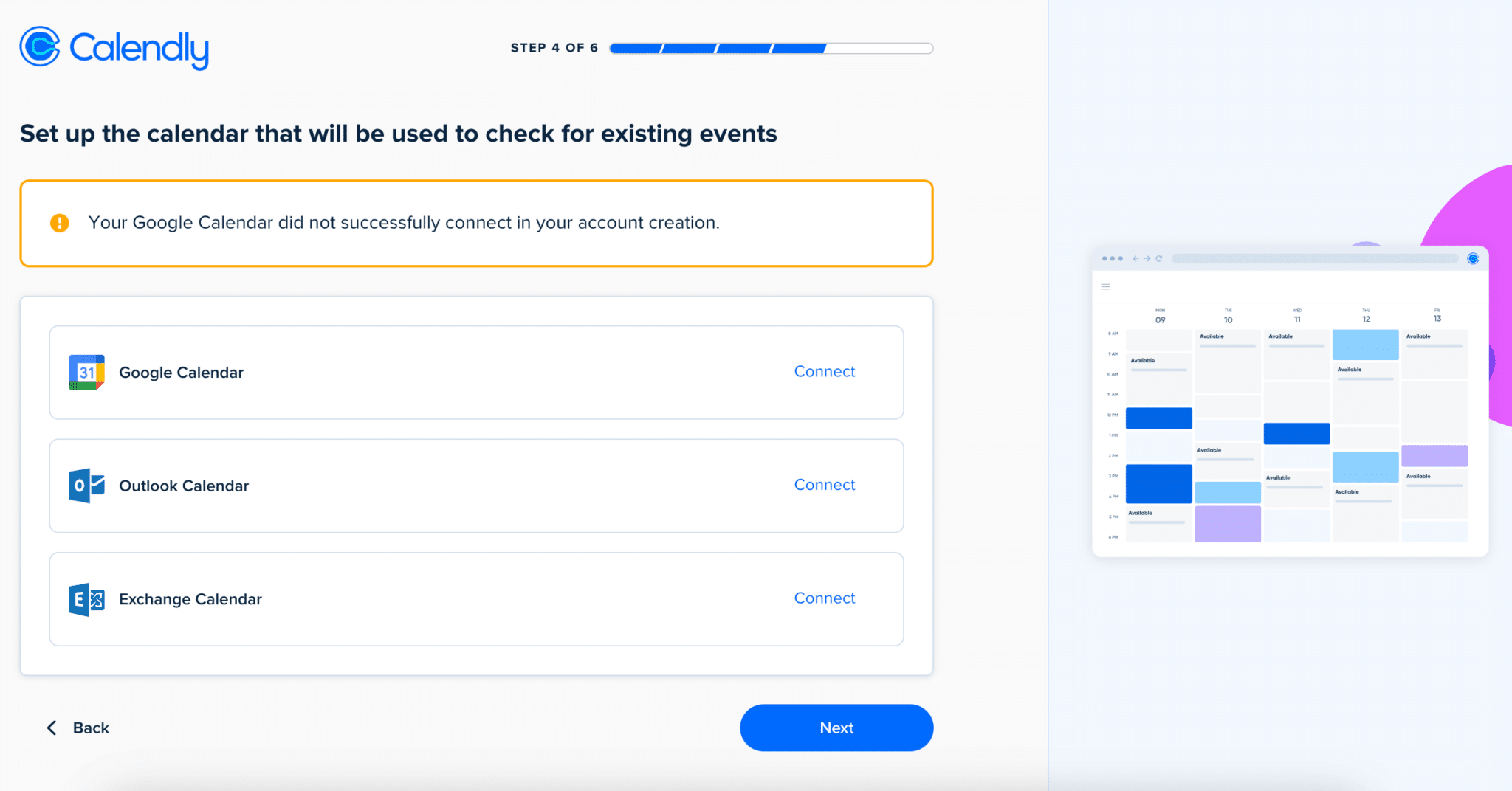
This feature is particularly useful for professionals who juggle several calendars, personal, work and team, and want to make sure the slots shown on Calendly always reflect the reality of their schedule.
Multi-calendar sync is a real plus for avoiding duplicates and overlapping meetings. But be careful: if your personal and work calendars are mixed, plan for a minimum of discipline and configuration, or you risk sharing more information than intended.
Calendly integrations
Calendly isn’t content with being an isolated scheduling tool: it plugs into a very broad software ecosystem to streamline your workflows.
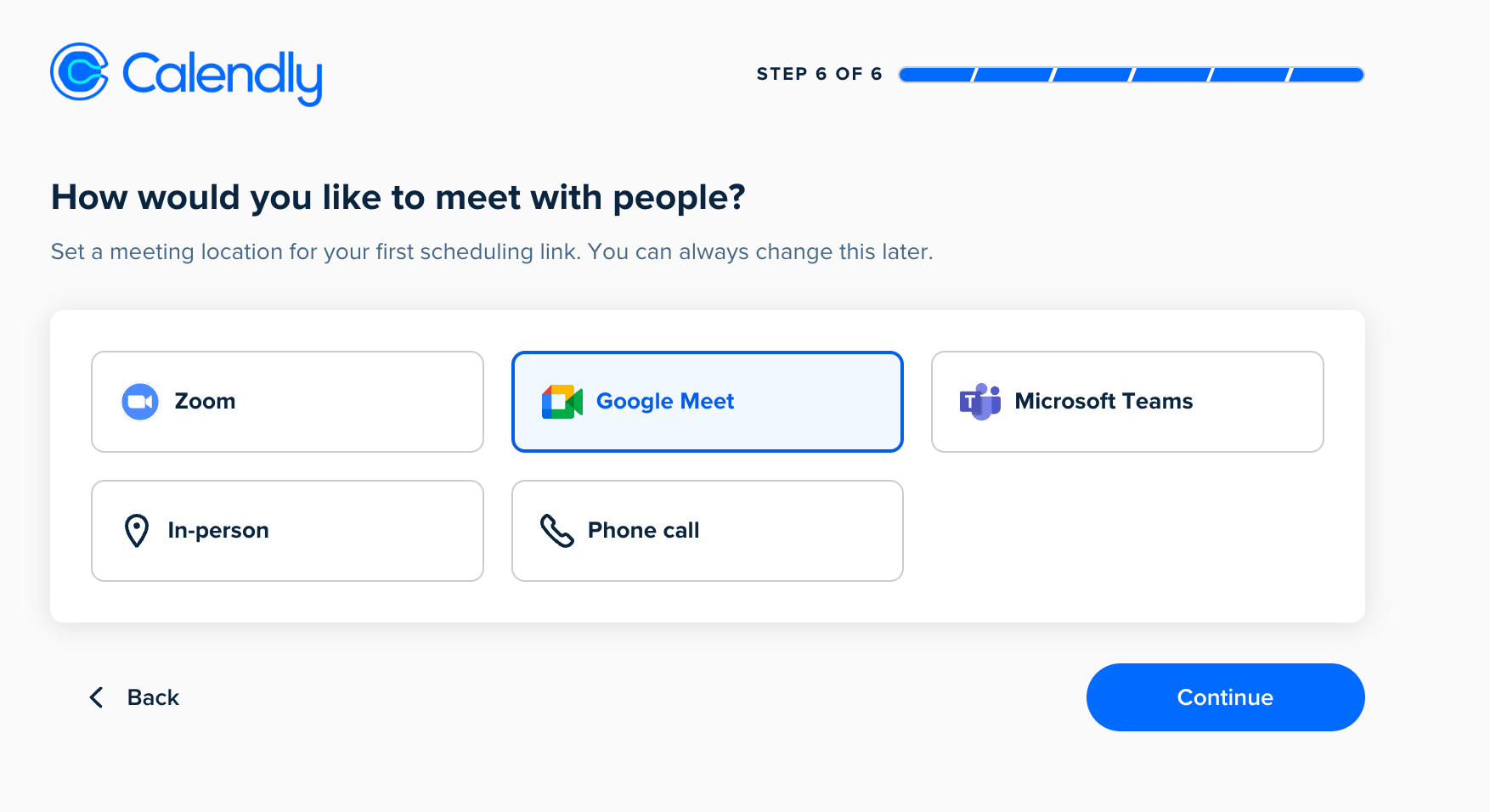
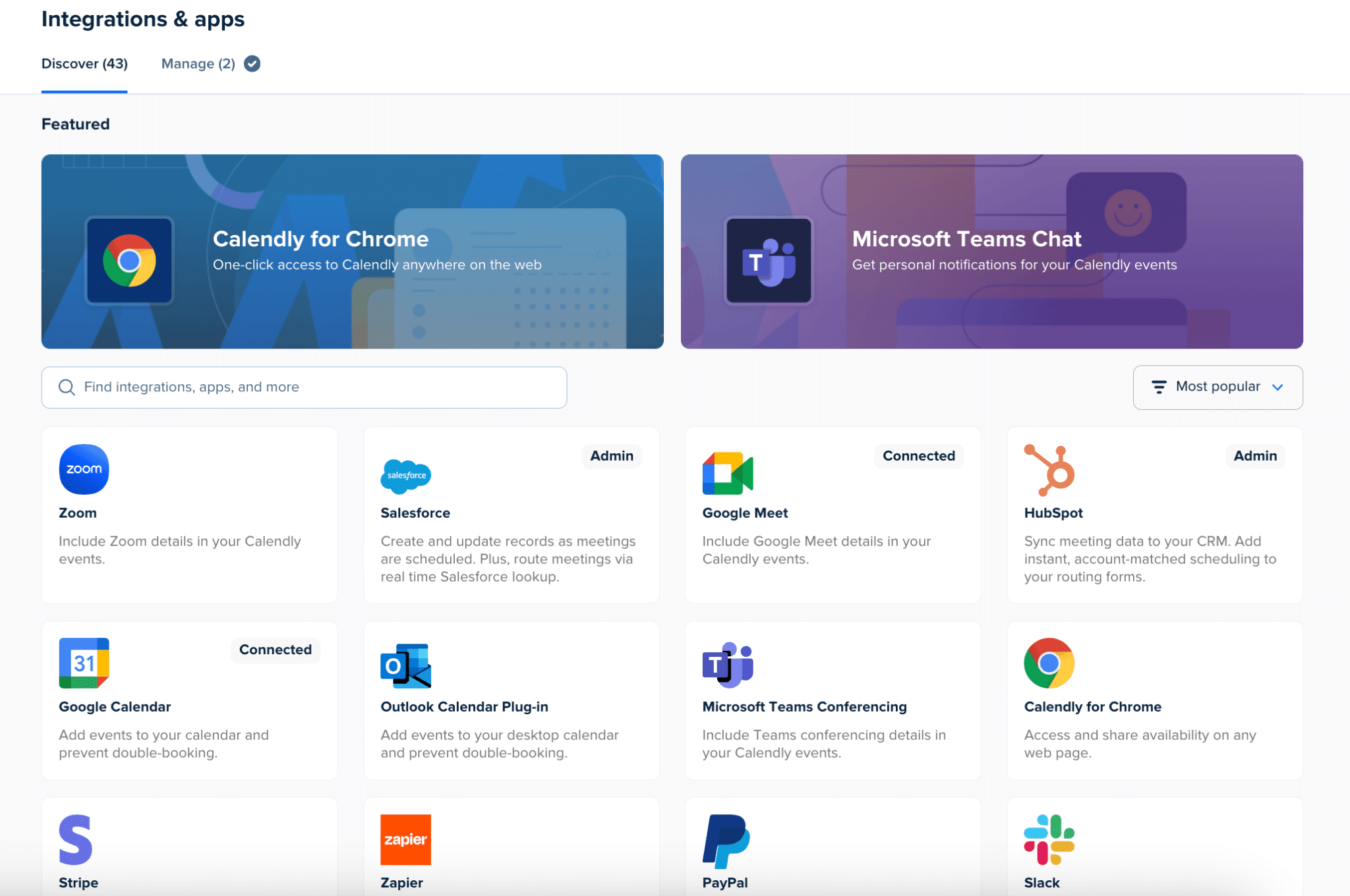
From the very first settings, you can connect your favorite video conferencing tools such as Zoom, Microsoft Teams or Google Meet. With each new booking, the meeting link is automatically generated and added to the calendar invitation, with no manual action.
The tool also connects directly to CRMs such as HubSpot or Salesforce, and to Pipedrive through a third-party connector, which lets you enrich contact records and trigger follow-up actions without re-entering data. For marketing automation, Calendly offers native integrations with platforms such as Mailchimp or ActiveCampaign, and automatically adds new contacts to your campaigns.
Calendly’s strength also lies in its connector library. On top of the native integrations, you can go through Zapier or Make to link Calendly to thousands of third-party apps, whether to send Slack messages, create tickets in a helpdesk or feed a database.
Calendly customer support
Calendly offers support that reflects the tool’s DNA well: clear, structured and focused on user autonomy. The online knowledge base is particularly complete, with step-by-step tutorials, detailed FAQs and setup guides that cover most use cases.
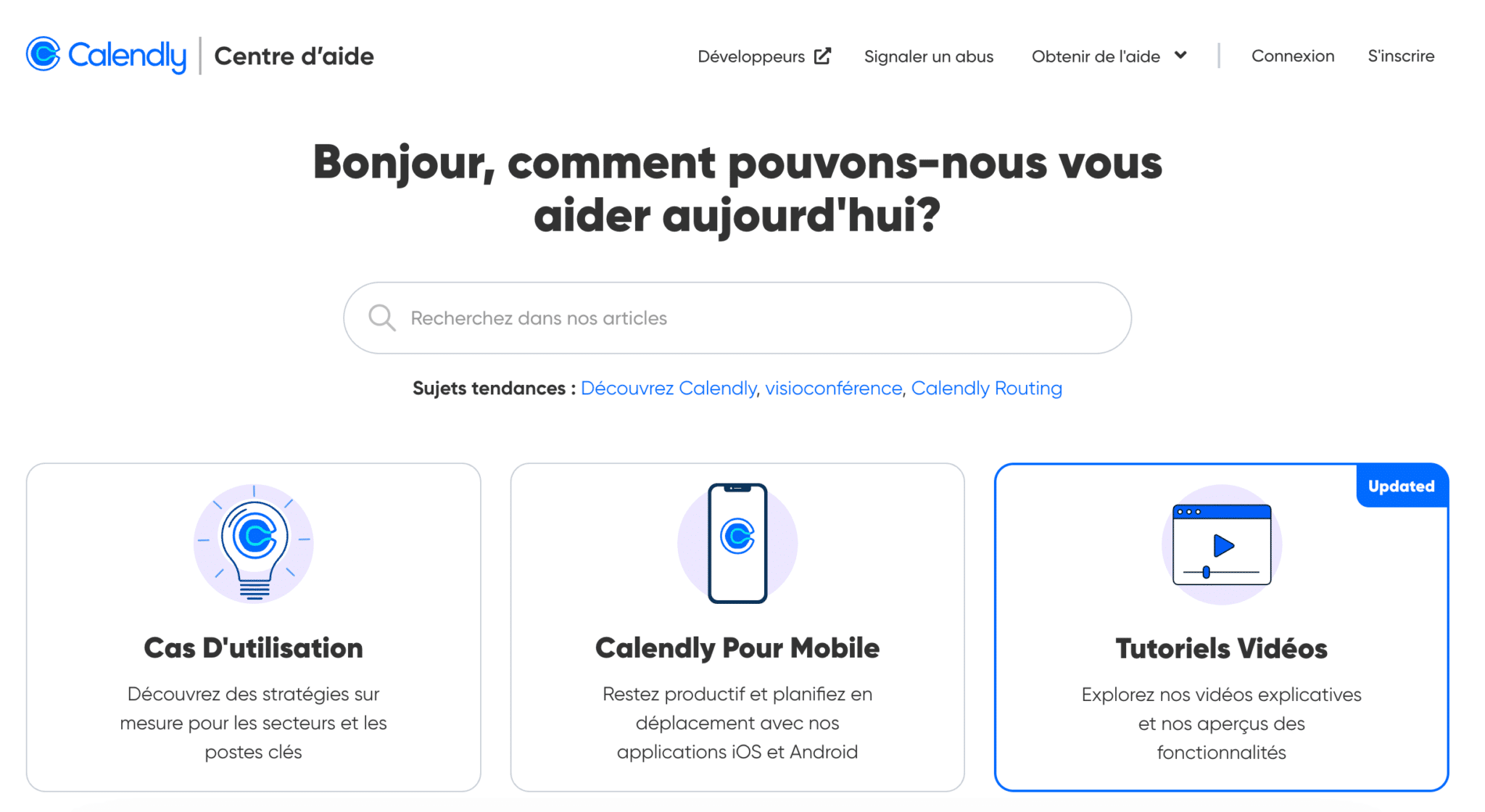
For a large number of questions, you’ll find the answer in a few minutes without needing to contact support.
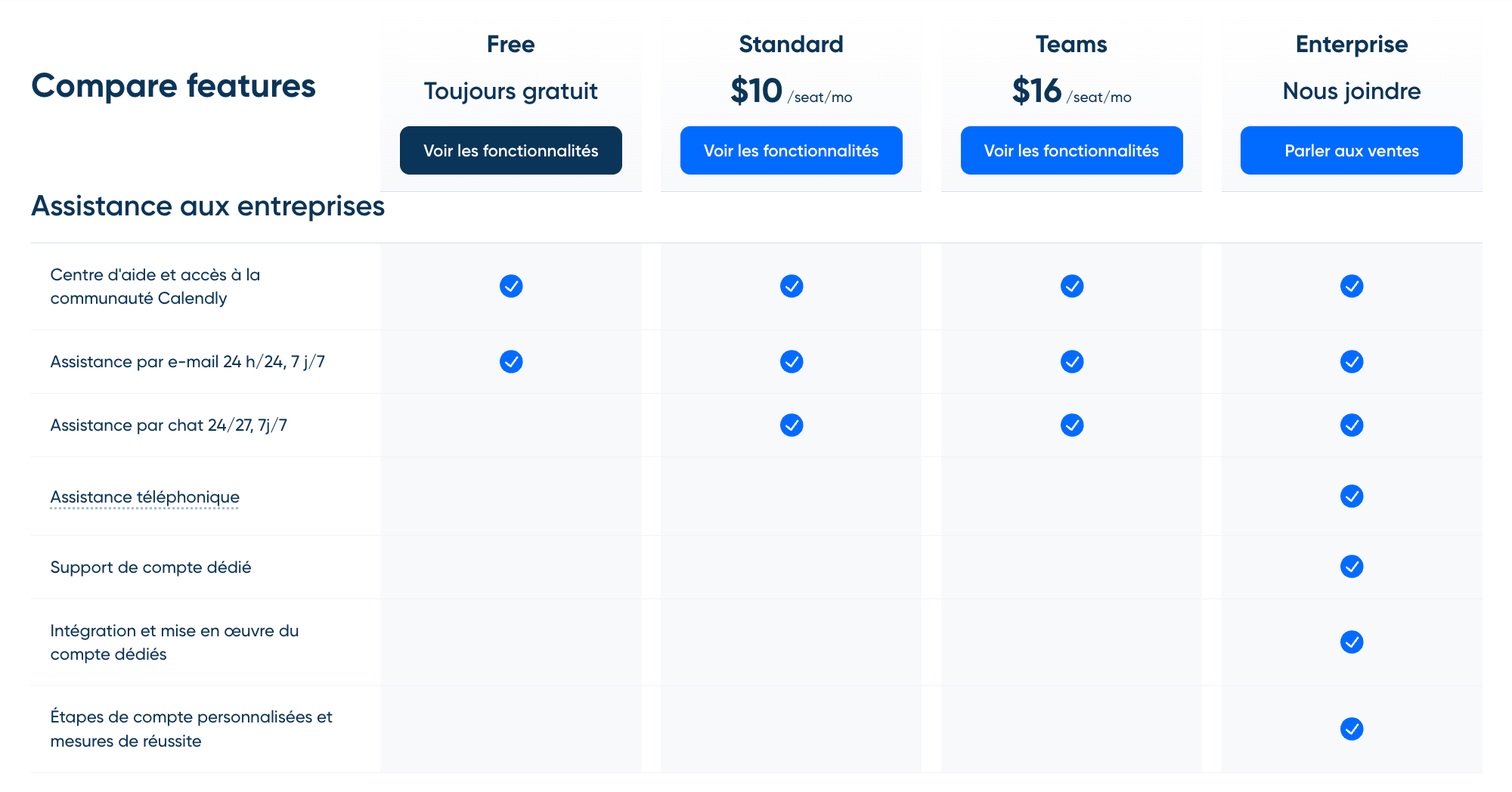
Email support, open 24/7, is available from the free plan onward, with answers that are usually fast and accurate. The Standard and Teams plans add access to live chat, also 24/7. As for the Enterprise plan, it comes with phone support and dedicated account support.
Calendly also runs a community hub where users can ask questions, share best practices and suggest product improvements.
Email from the free plan, chat from the Standard and Teams plans and phone for the Enterprise plan. Simple, clear, effective.
Calendly plans and pricing
Calendly subscriptions are simple, transparent and aligned with what users actually need.
Here is an overview of the 4 available plans, with their prices on annual billing, in dollars per user, and our recommendations depending on your use case:
| Plan | Price (annual) | Key features | Best for |
|---|---|---|---|
| Free | $0 / month | 1 event type Connection to 1 calendar Customizable booking page Video conferencing, mobile app and extension |
Trying out the tool or basic solo use |
| Standard | $10 / user / month | Unlimited event types Connection to up to 6 calendars Payments (Stripe, PayPal), integrations (HubSpot, Mailchimp, Zapier) Automatic reminders, 24/7 chat support |
Professionals or small teams who want to automate and integrate |
| Teams | $16 / user / month | Standard features plus Round Robin Lead routing and qualification Salesforce, Marketo, Pardot integration Admin controls and SSO option |
Growing teams that need smart distribution |
| Enterprise | Starting at $15,000 / year | Teams features plus built-in SSO and SAML Domain control, audit logs, deletion API Salesforce lookup, Dynamics 365, dedicated support |
Large organizations with security and compliance requirements |
In practice:
- The Free plan is perfect for getting started with no commitment and no time limit.
- With Standard, you shift up a gear with advanced integrations and customization. It’s excellent value for money for freelancers and very small businesses.
- Teams becomes relevant as soon as several colleagues need to book meetings in a smooth, coordinated way.
- Go for Enterprise if you have strong IT requirements: security, governance, premium support.
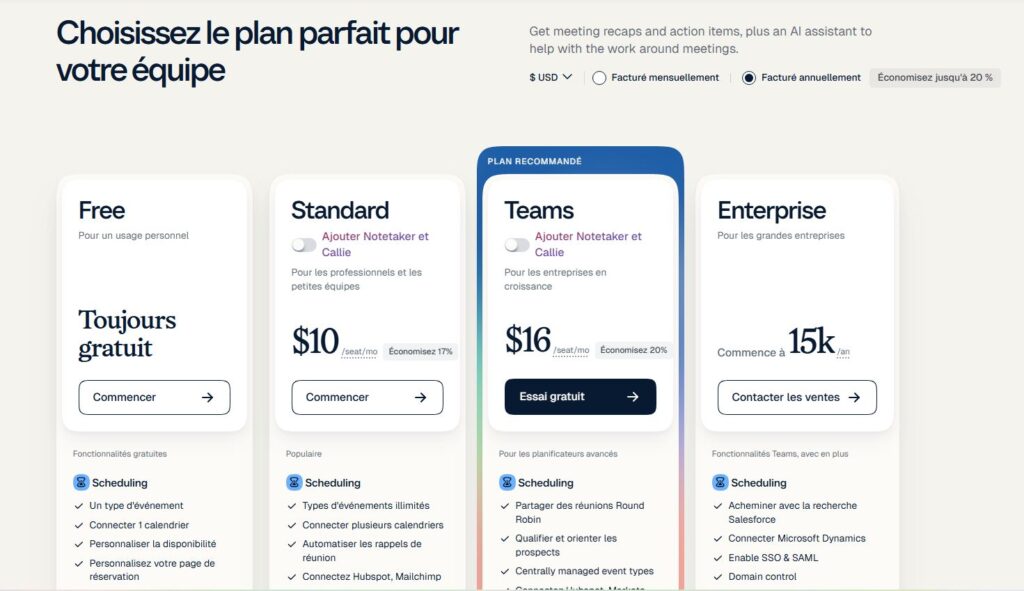
Calendly’s free version already covers basic needs, but as soon as you want to work as a team or automate more, upgrading to a paid plan quickly becomes a must. Prices remain competitive compared to the market, especially if you make good use of all the included features.