Developed by Atlassian around the Kanban board method, Trello is a reference tool in the project management software market.
Naturally popular with fans of Kanban software, it is also used by companies running Agile processes, who like how quickly you get the hang of it.
Trello is not limited to Kanban: it also offers many other views and project and task management features. That said, the tool quickly hits its limits for large teams or complex projects.
Trello: feature overview
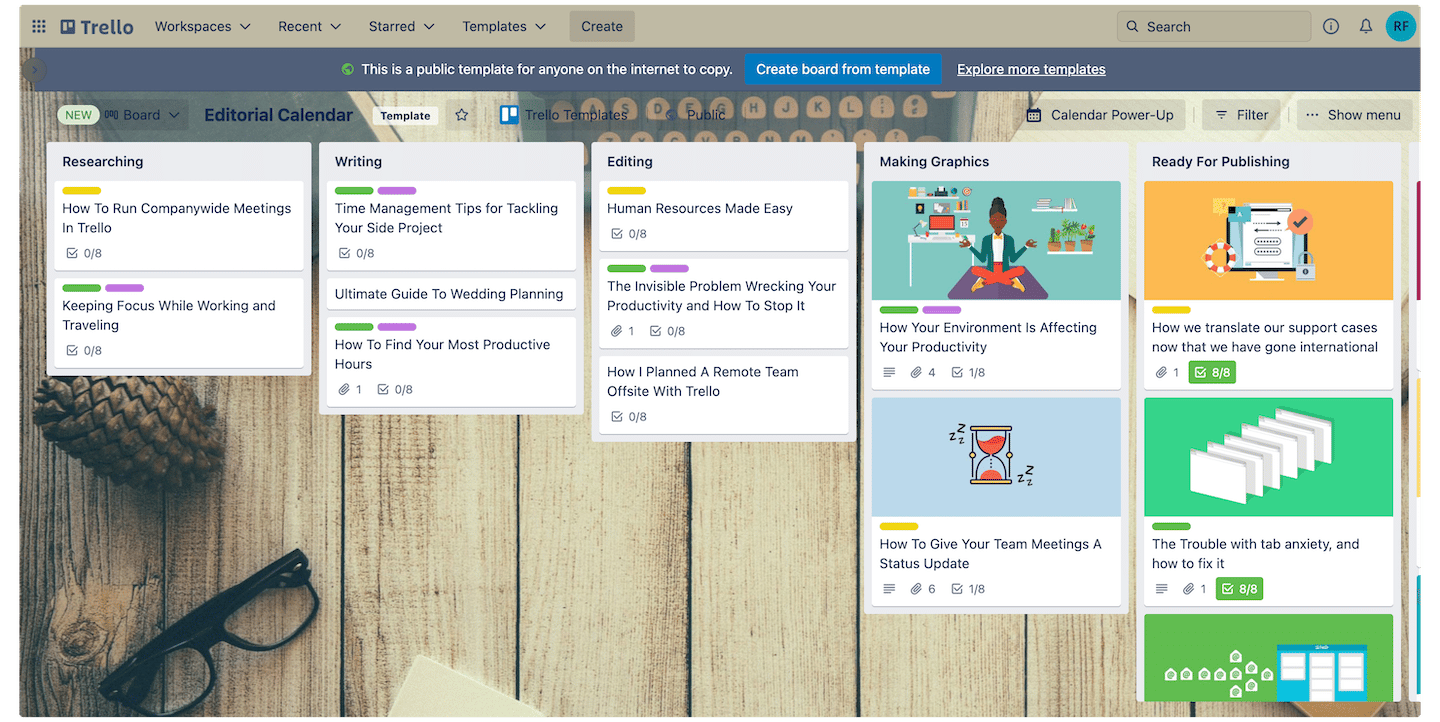
Project management and task planning
Trello cards are a direct application of the Kanban method: they let you view and manage a project’s tasks as a board, with several columns, each one marking a stage of progress in the project.
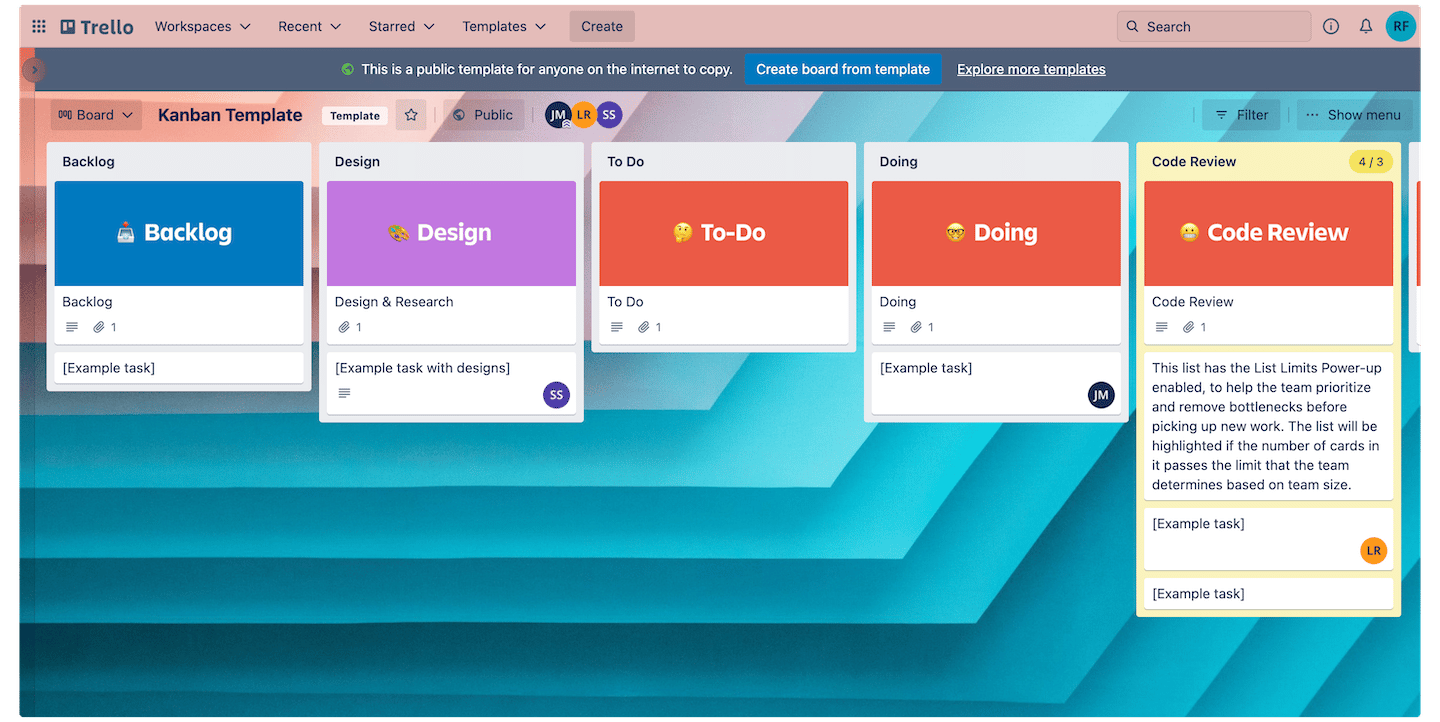
Cards represent tasks to be done. They move from one column to another depending on how far along they are. The most basic version of the Kanban board has “to do”, “in progress” and “done” columns, but there are more complex ones.
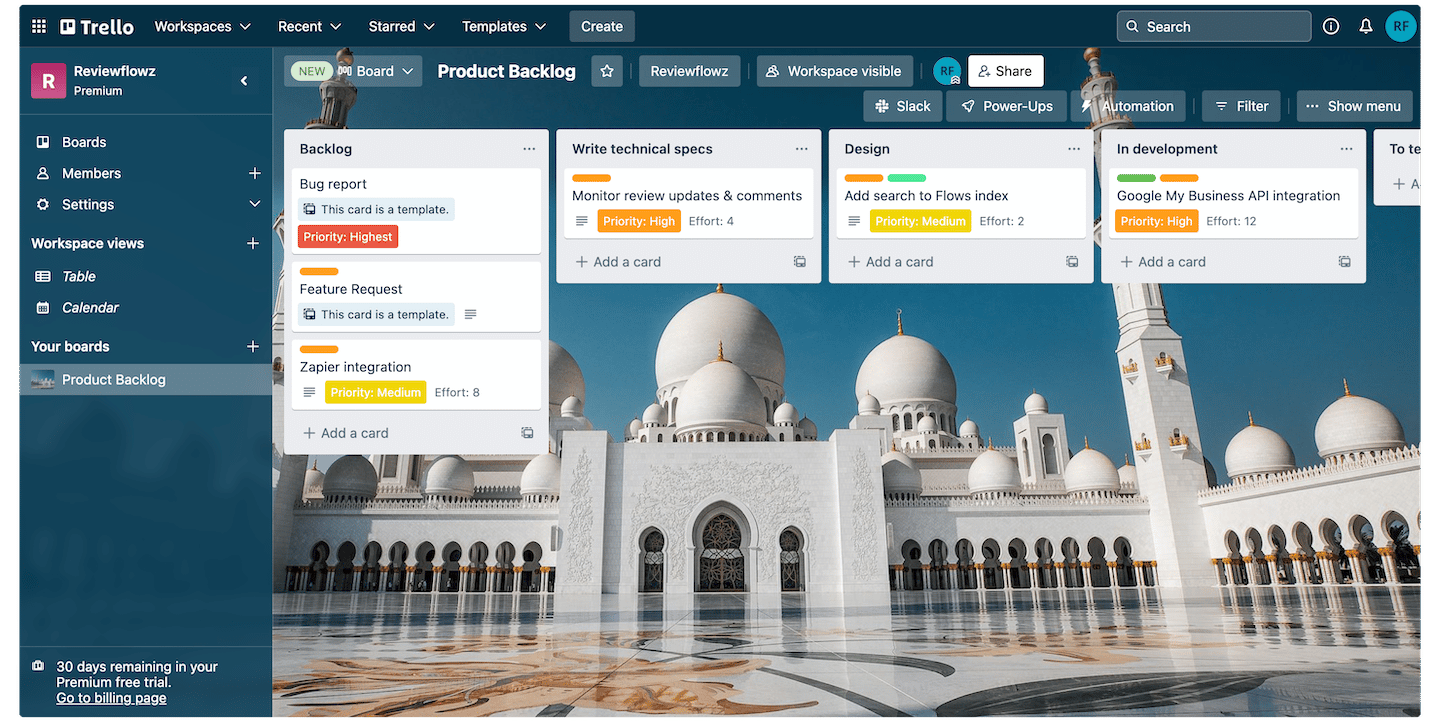
Checklists are the small items of a bigger task. Since each card represents a task, checklists sit inside the cards.
The advanced checklist feature lets you assign a due date and a person to individual checklist items.
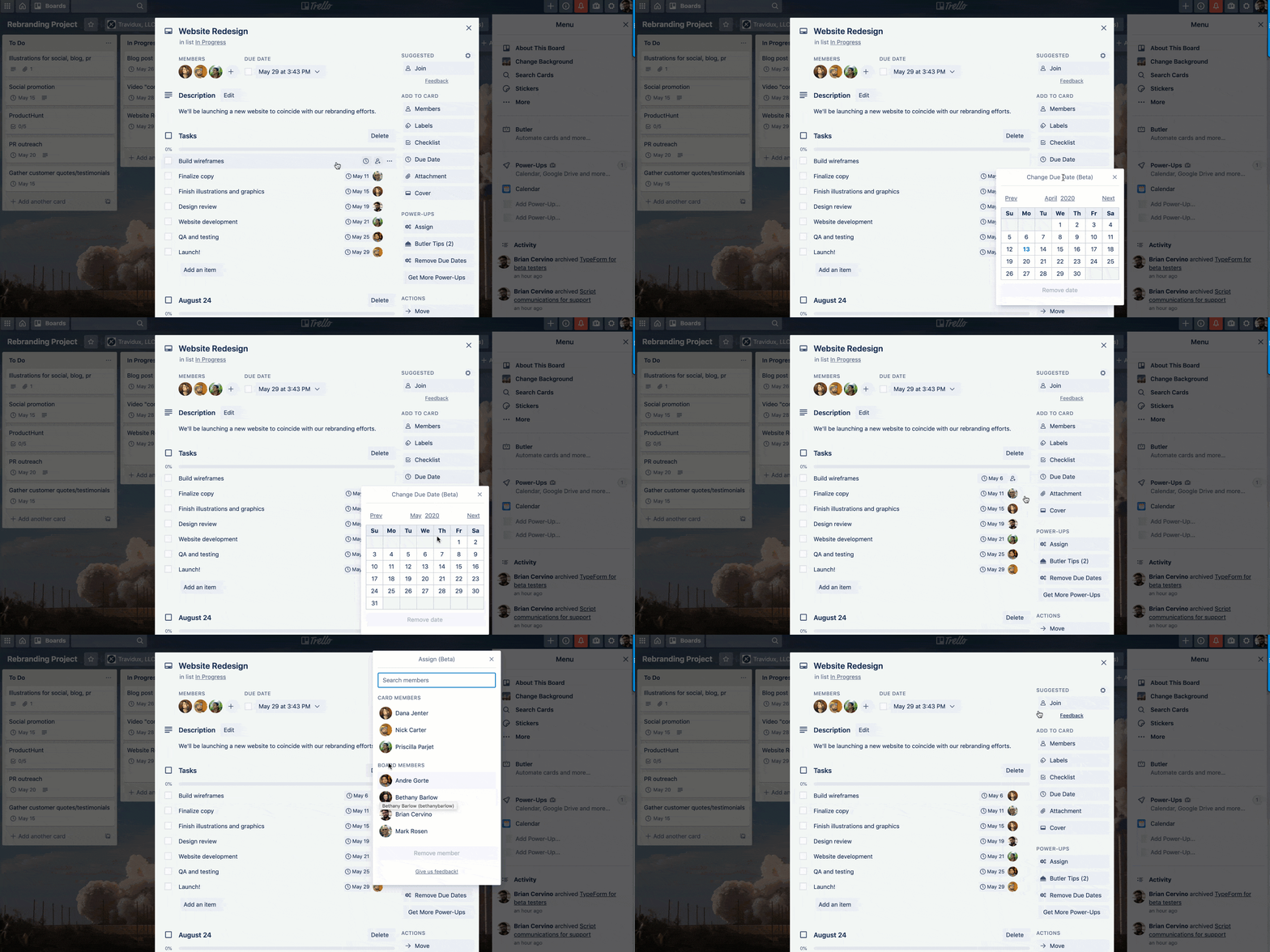
Every checklist item you have assigned shows up on your home screen. That makes it easy for team members to see everything assigned to them across all boards, so no task slips through the cracks.
Salesdorado’s takeWe like that Trello and its features are also available in a mobile app, which is pretty well built, for that matter.
Visualization tools
Even though the Kanban board is at the heart of the Trello method, the tool gives you other ways to visualize your workflow through the Views feature, available on the paid Premium and Enterprise plans.
This ability to adapt to each team’s needs and preferences is one of Trello’s real strengths.
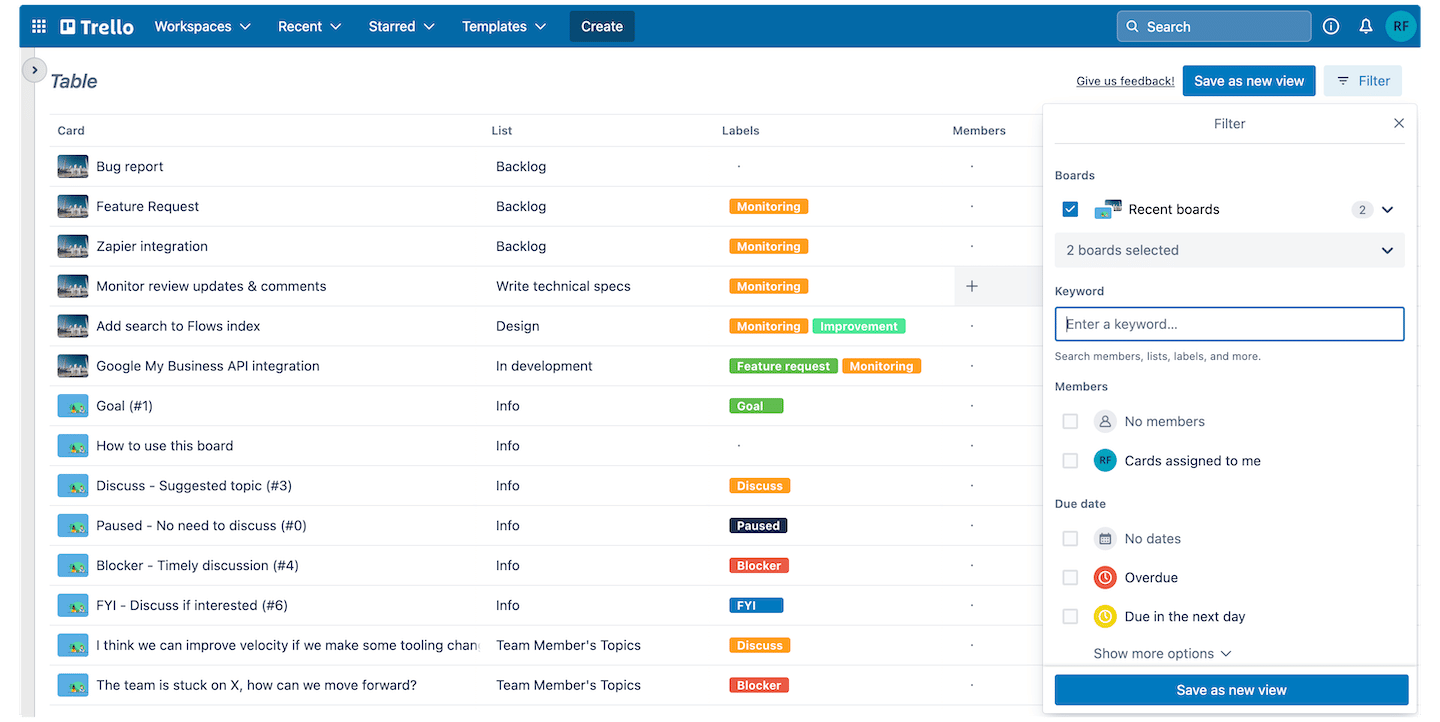
On top of the Kanban view, you can see your work as a timeline, a table, a calendar, a dashboard and a map.
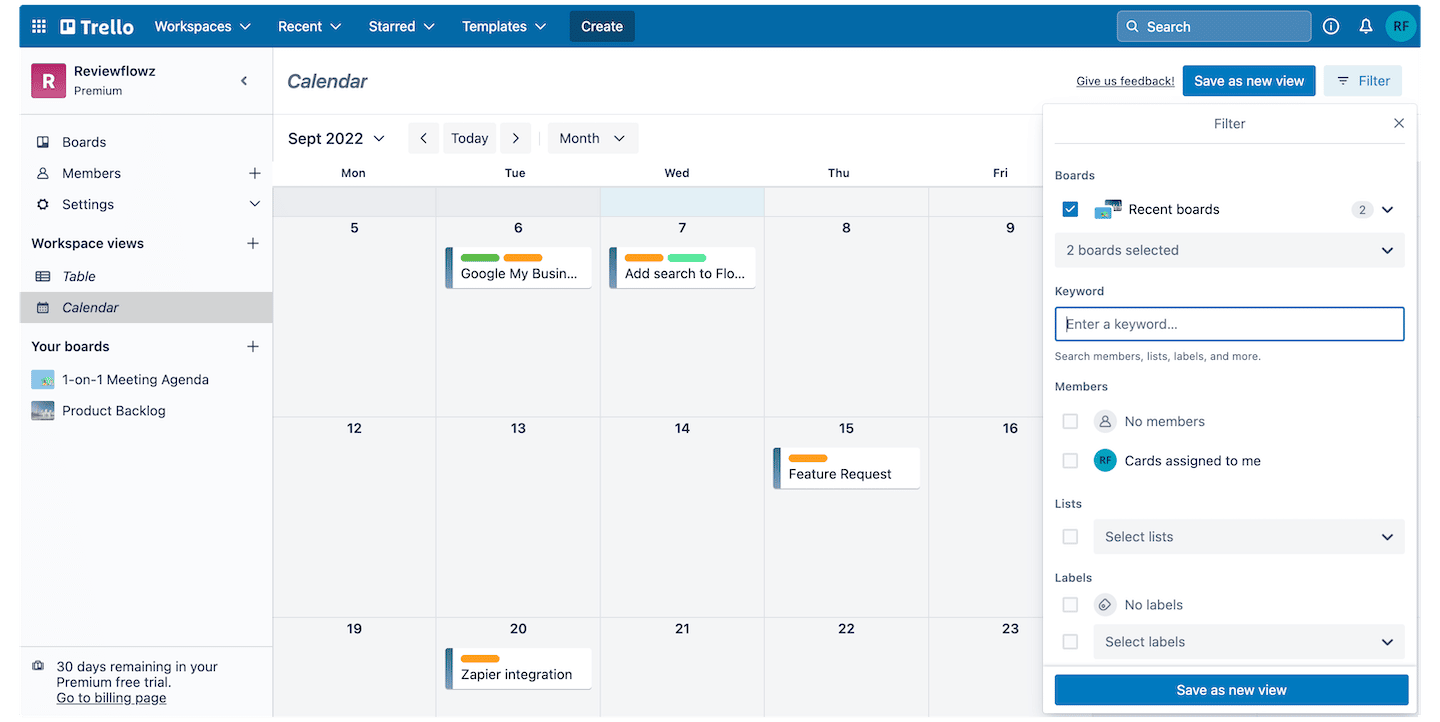
The timeline and calendar views show you how the team’s work fits together over time and help you anticipate bottlenecks. The table view gathers cards from different boards in one place for an overall picture.
Automation: Trello’s real strong point
Trello has a built-in automation tool called Butler, which the interface now simply calls “Automation”. It saves time by handling repetitive tasks and lets you get more done, more efficiently.
Butler lets you set rules where one action, the trigger, is followed by another action: moving cards from one list to another, sending notifications, or syncing advanced checklists.
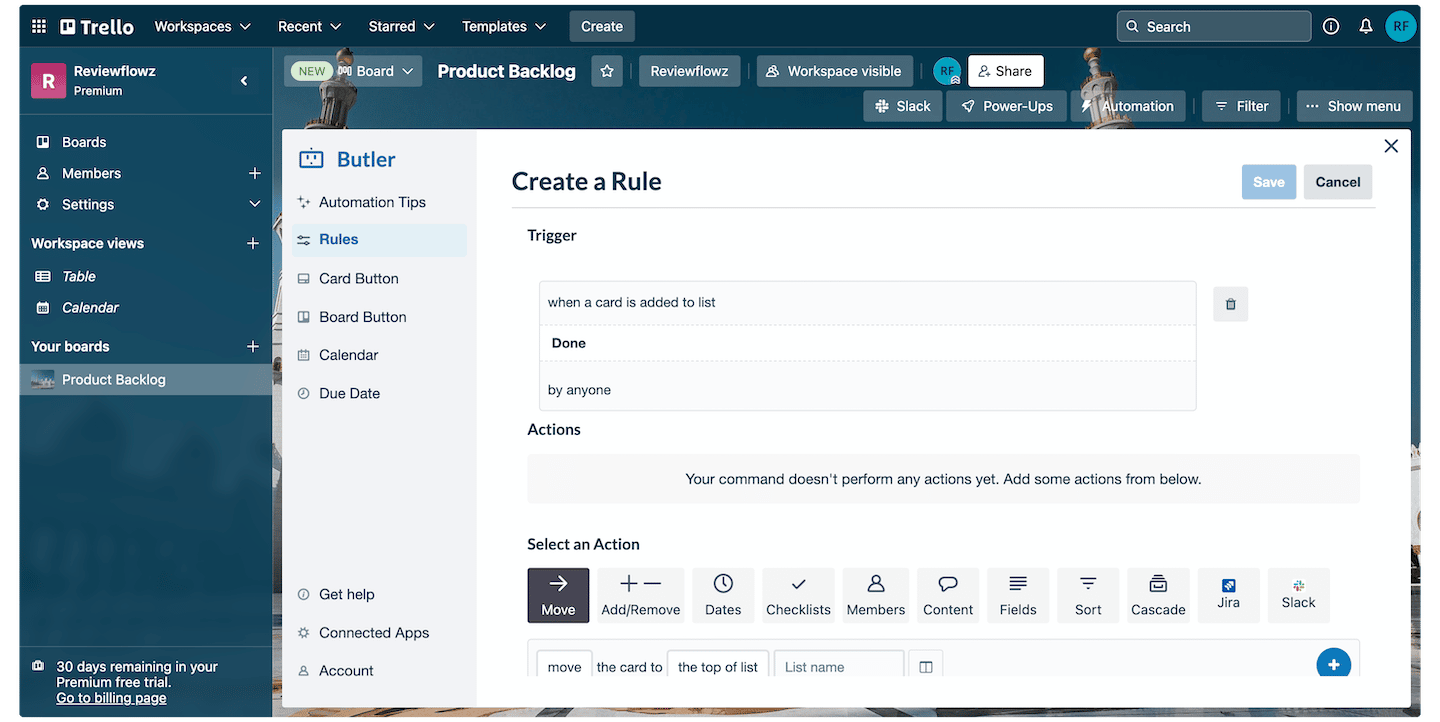
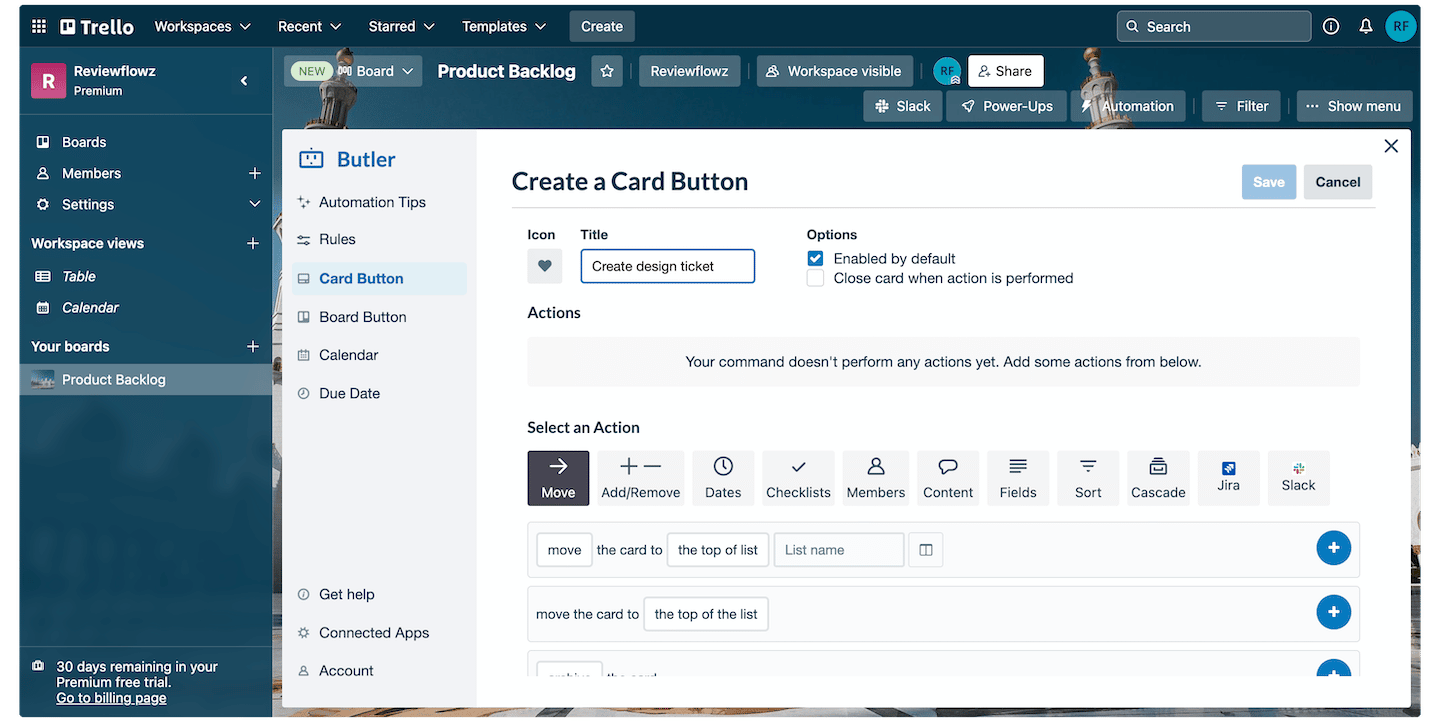
Automations in Trello also work through a button system. For example, you can create a button that, when clicked, moves the work to the next step of the process by sending it to the next list.
Butler also lets you set up calendar commands. For example, you can automate recurring tasks and set a command so that all cards in the “Done” list are archived every Monday at 8:00 a.m.
You can also use a card’s due date as a trigger for a series of actions. For example, you can set a command so that a card that is due moves to the top of the list.
Finally, Trello lets you create automations for emails and integrations, which come in handy if you share updates with external collaborators or clients.
For example, you can set a rule so that clients get an email telling them feedback is needed every time a card is dragged into the “Feedback needed” list.
Customer support at Trello
Trello’s helpdesk is run by Atlassian and is available on their website. It gives access to documentation, the Trello community, a page showing the real-time status of Trello’s services, and FAQs, notably on billing.
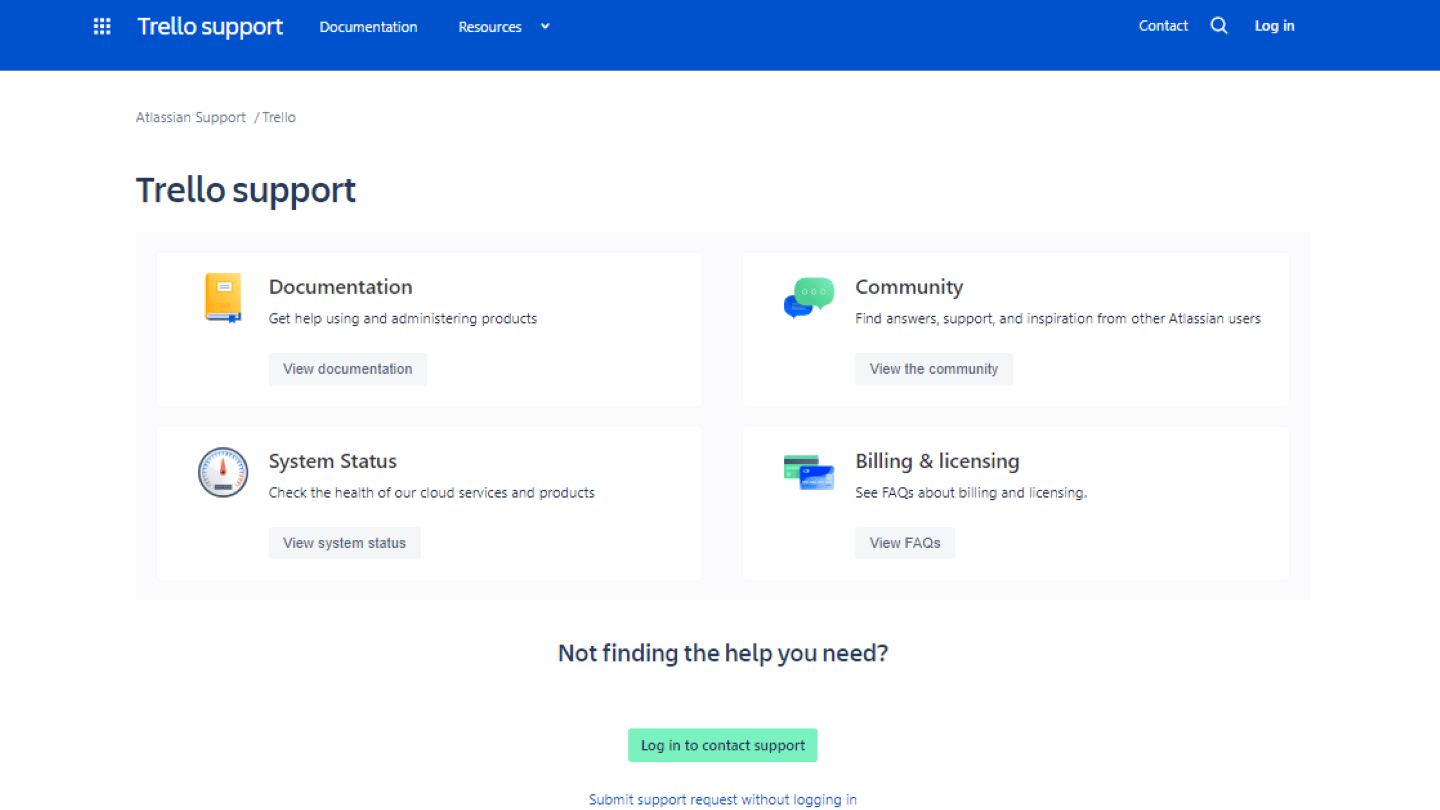
The resources in Trello’s help center are plentiful, well organized and easy to reach through the search bar. They are backed up by Trello’s YouTube channel, which has plenty of tutorials and explainer videos.
The community Trello runs is also a real plus, for sharing tips and best practices between users.
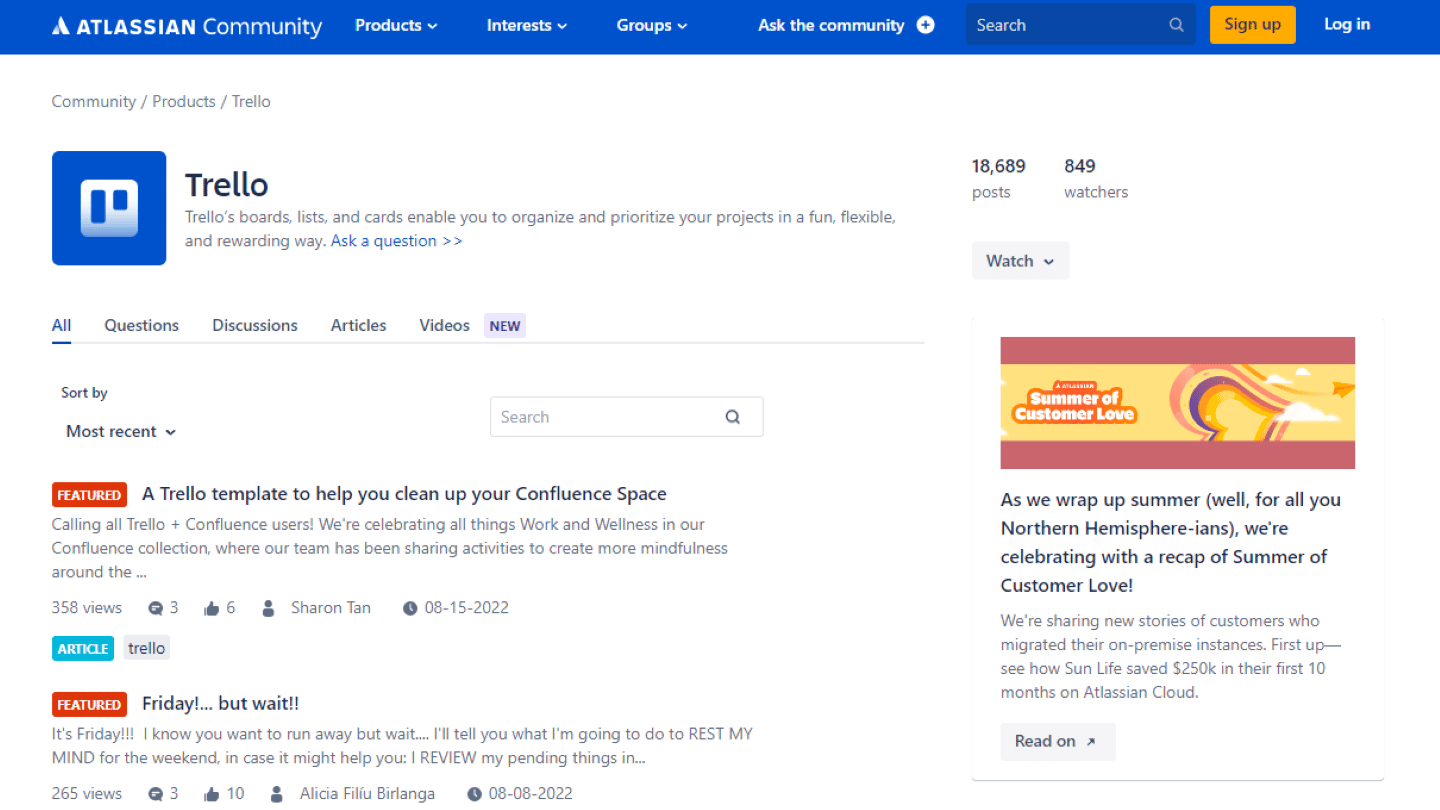
Too bad, though, that Trello’s customer service can only be reached through a contact form, which is fairly limited.
The Trello integrations marketplace
Trello offers many integrations:
- Internal and external communication: Gmail, Slack. Since Trello is not built around communication, these integrations will be very useful for anyone managing projects with a sizable team, or who needs to collaborate.
- Automation: Focuster, Make, Autopilot, Zapier. Trello already has automation features, but these integrations are needed to go further and automate your processes across other tools.
- Social media: X (formerly Twitter), Mailchimp, Evernote. These integrations are a real plus for any team working on projects that involve communicating or gathering information on social media.
- Developer tools: Pegasus, Dashworks, GitHub. A real plus for anyone who wants to combine Trello’s project management strengths with those of developer tools: ideal for web projects.
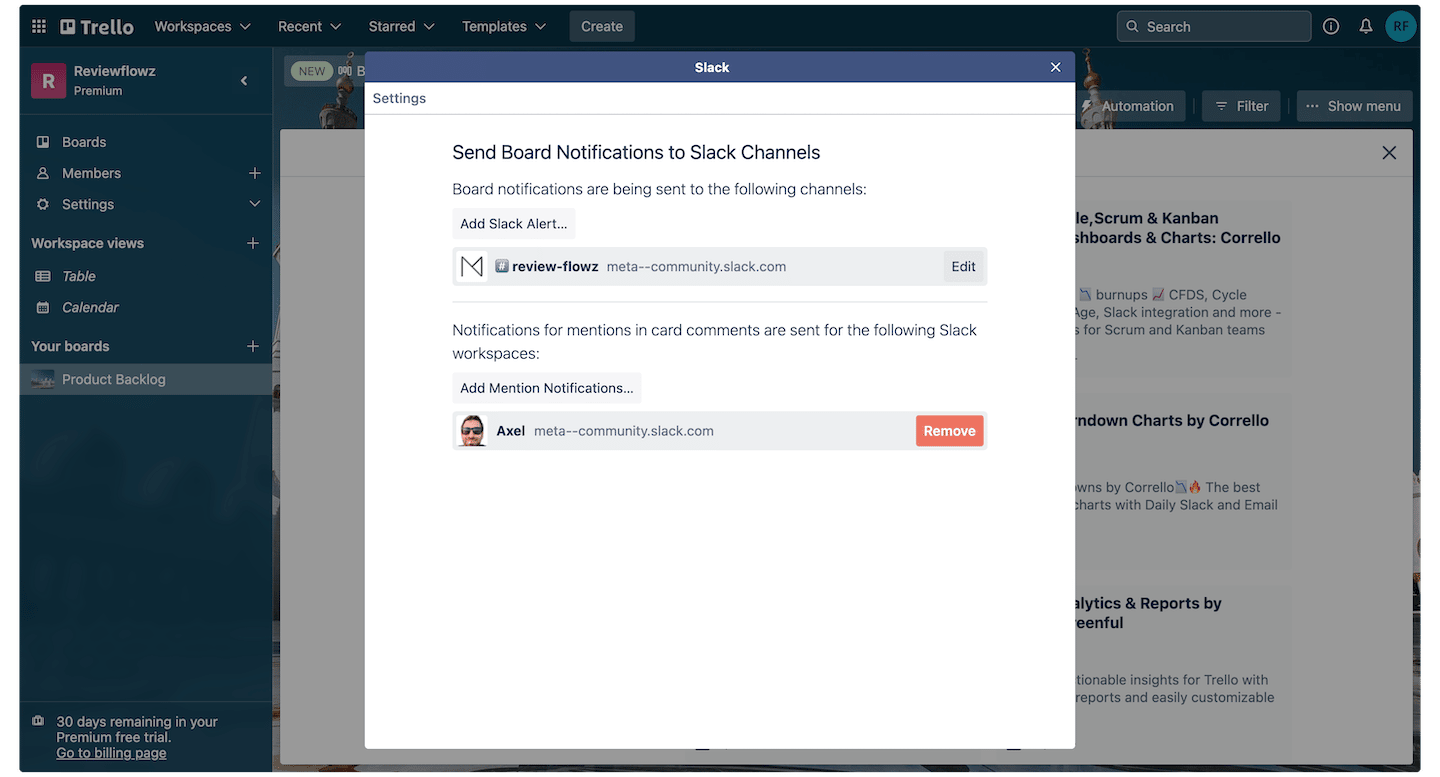
Salesdorado’s takeWe like that every integration is available from the free plan. Too bad, though, that the Microsoft suite is poorly covered: Teams and OneDrive have their Power-Up, but the Outlook add-in has been retired.
Trello: pricing
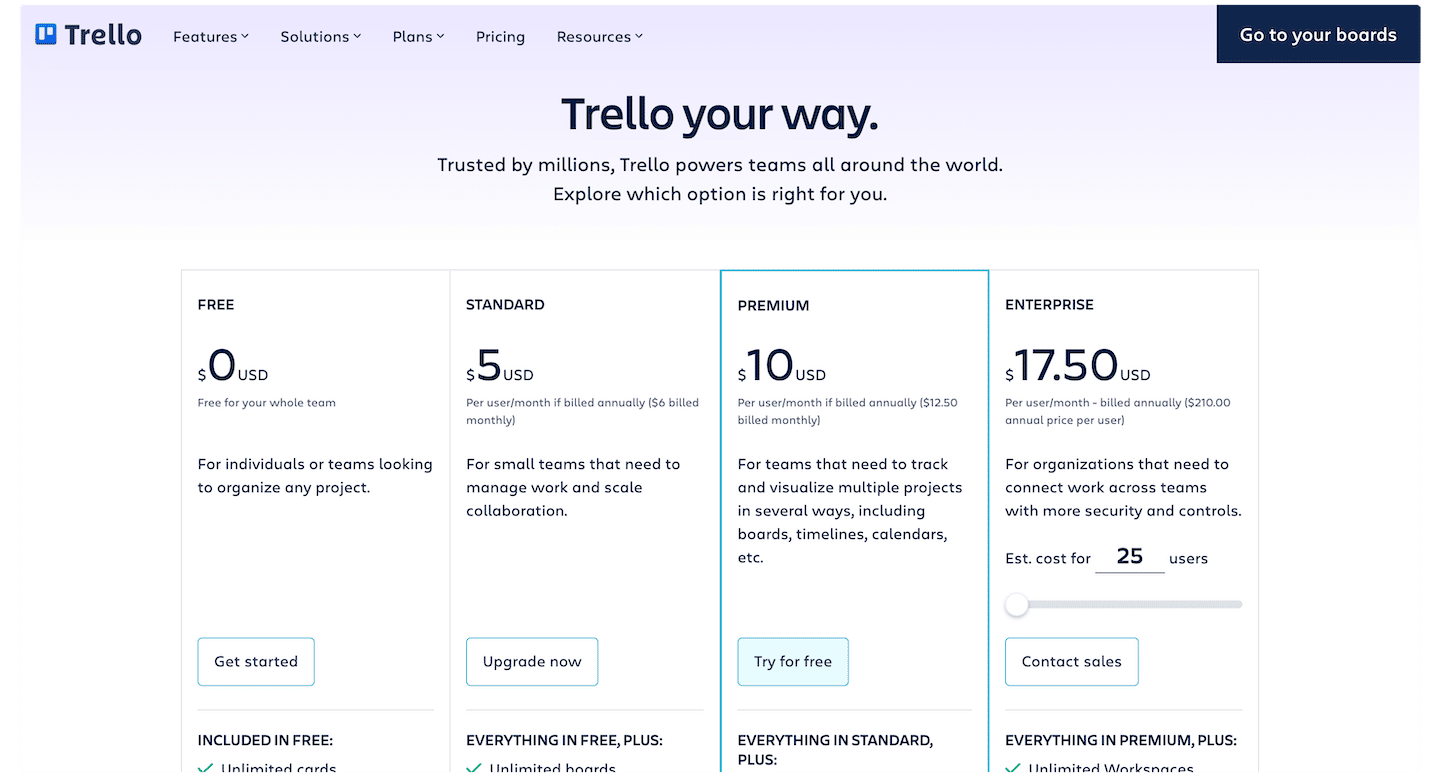
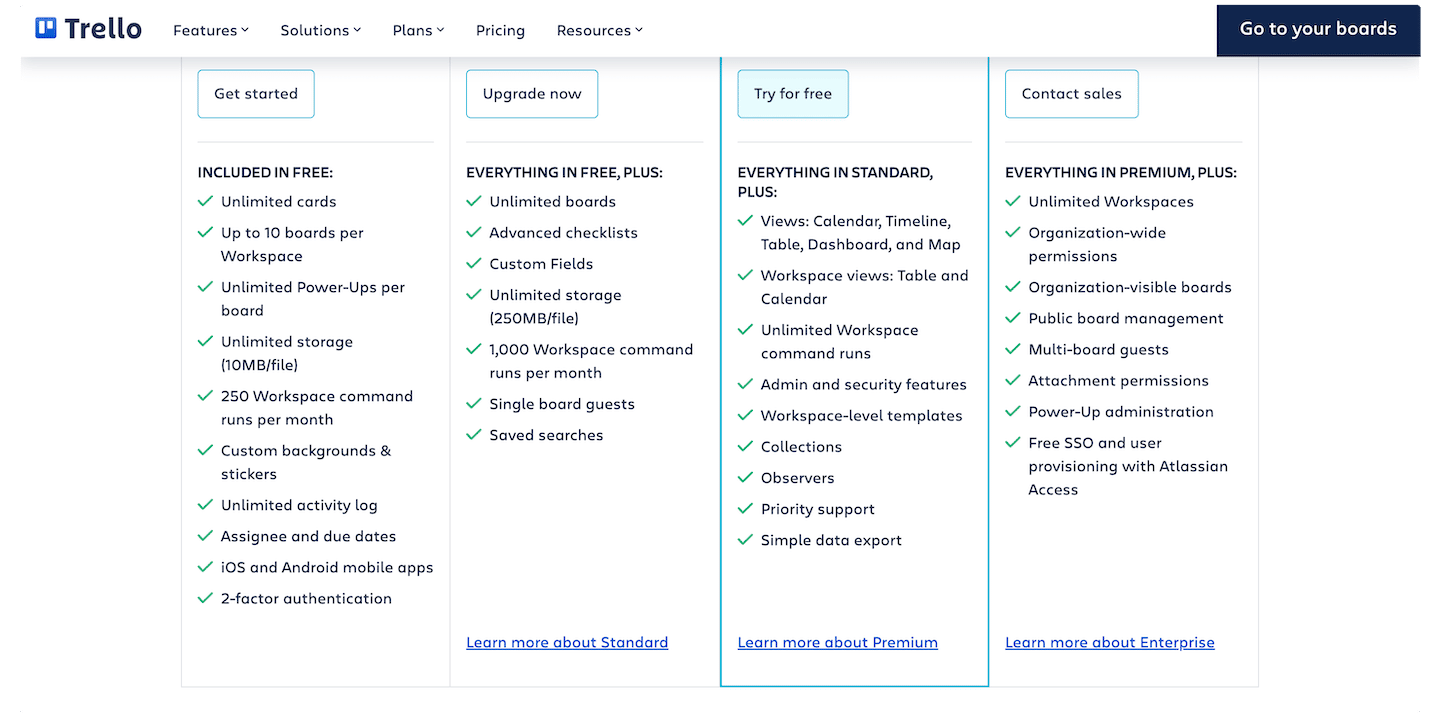
Trello offers several plans:
- Free: this plan gives you unlimited cards and access to automations on the web and mobile apps, but it is capped at 10 boards and 10 collaborators per workspace, and 250 automation runs per month. It is mostly meant for small teams or simple projects.
- Standard: 6 dollars per user per month (5 dollars billed annually). Compared with the free version, this plan adds unlimited boards, more storage and more automations, and lets you invite people to boards.
- Premium: 12.50 dollars per user per month (10 dollars billed annually). This version unlocks every view (calendar, timeline, spreadsheet, dashboard and map), admin and security features, and templates.
- Enterprise: 17.50 dollars per user per month, billed annually only. This plan adds unlimited workspaces, plus organization-wide permission, admin, authentication and sharing features.
Salesdorado’s tipYou can get a discount on the prices above with an annual subscription, so go for it.
Given the features and the time saved, paying for the paid version is a winning bet in our view.
Salesdorado’s takeWe really like that Trello offers a 75% discount on its prices to NGOs and charities.