Canva was long seen as a nice little tool, perfect for knocking together an Instagram post or making a birthday card. Simple, fun, colorful… but not very serious. And that is still what plenty of design pros think (they keep snubbing Canva with unwavering consistency).
So yes, Canva is not Photoshop, nor Illustrator, but that is not the point. Canva is not trying to replace professional design software, it offers something else: a visual platform that is accessible, quick to learn and genuinely effective at producing clear, clean, consistent content, all without any design skills.
Canva now covers a very broad scope, as we are about to see. And above all, it does it well. We are going to share our hands-on experience and our full review of Canva: its strengths, its limits (there are some, no question about it), its typical use cases.
Canva’s feature scope
Canva was long pegged as a “quick” design tool, built for social media or simple communication materials. But in reality, the platform has become much more than that over time.
Today, Canva offers a complete visual creation suite that lets you produce every type of content: static or animated, print or digital, personal or professional, all without any particular technical skills.
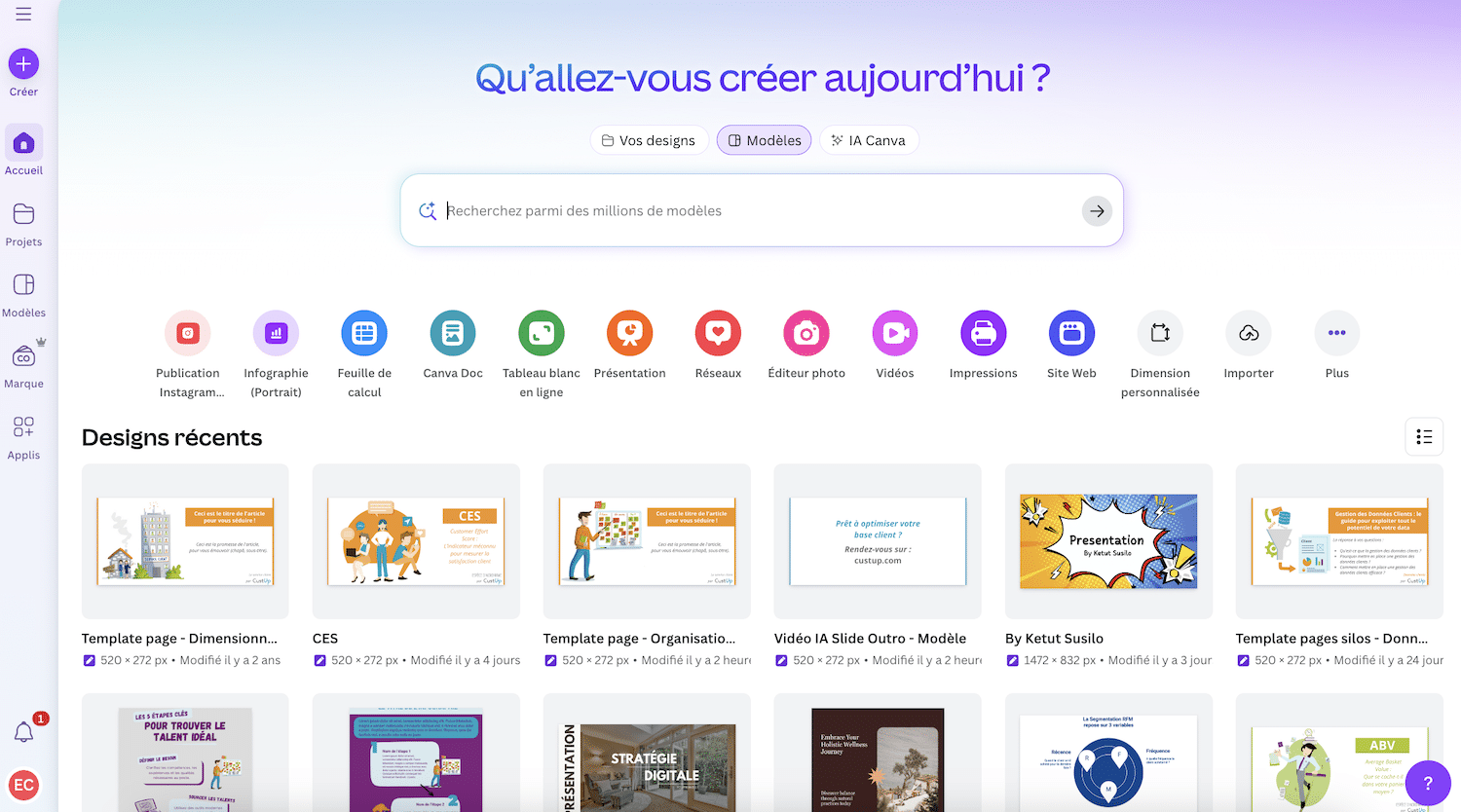
A complete suite to cover every creation need
Canva’s strength is that it has leveraged its simplicity to extend its approach to formats beyond images and social posts.
Today, you can produce everything in Canva… or almost:
- Doc, designed for writing readable, illustrated, modern documents, the equivalent of Google Docs, but far more visual. You can embed charts, images, videos or blocks imported from other Canva designs.
- Presentation, which offers a very solid alternative to PowerPoint. The interface is well thought out, transitions are easy to apply, and the template library is particularly rich.
- Whiteboard, which lets you structure ideas freely: sticky notes, diagrams, timelines, mind maps… It is a rarely used tool, little known among users, but very handy for workshops, brainstorming sessions or visual note-taking.
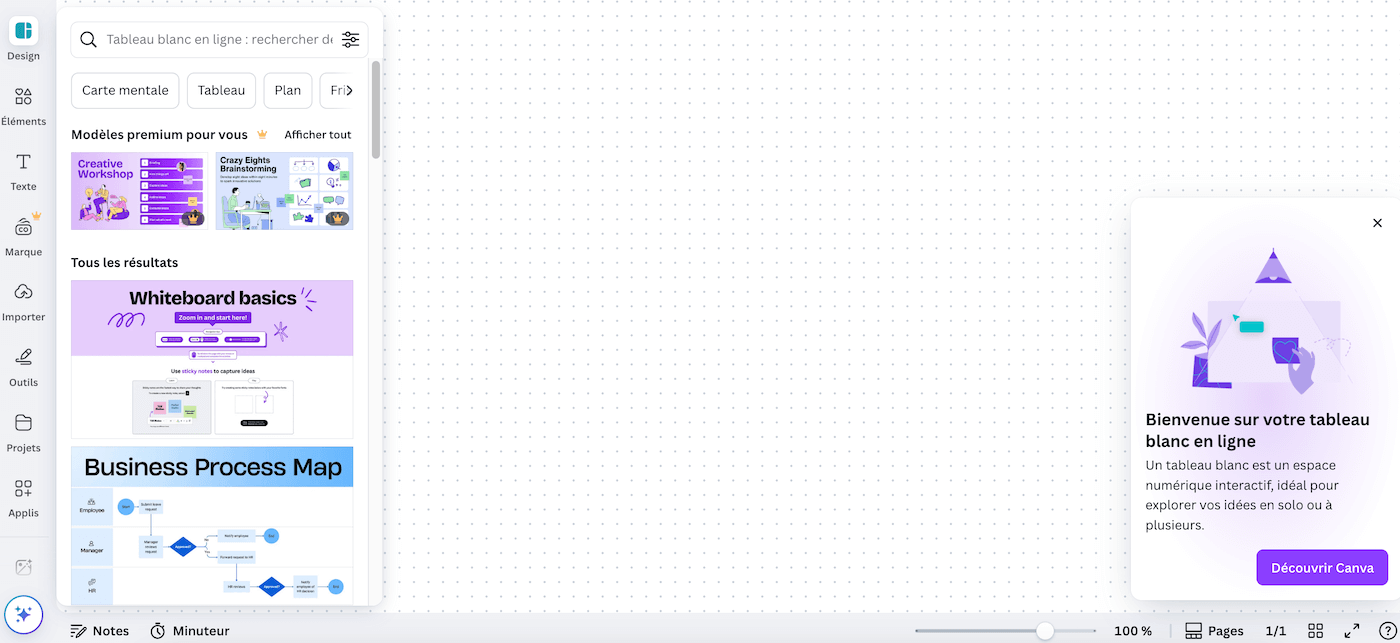
- Websites, which lets you turn a design into a standalone mini site. Customization is still fairly limited, to be honest, but it is very effective for quickly publishing an introduction page, an online resume or a landing page.
- Videos, built on an integrated editor for cutting simple clips: trimming, transitions, soundtrack, subtitles, effects…
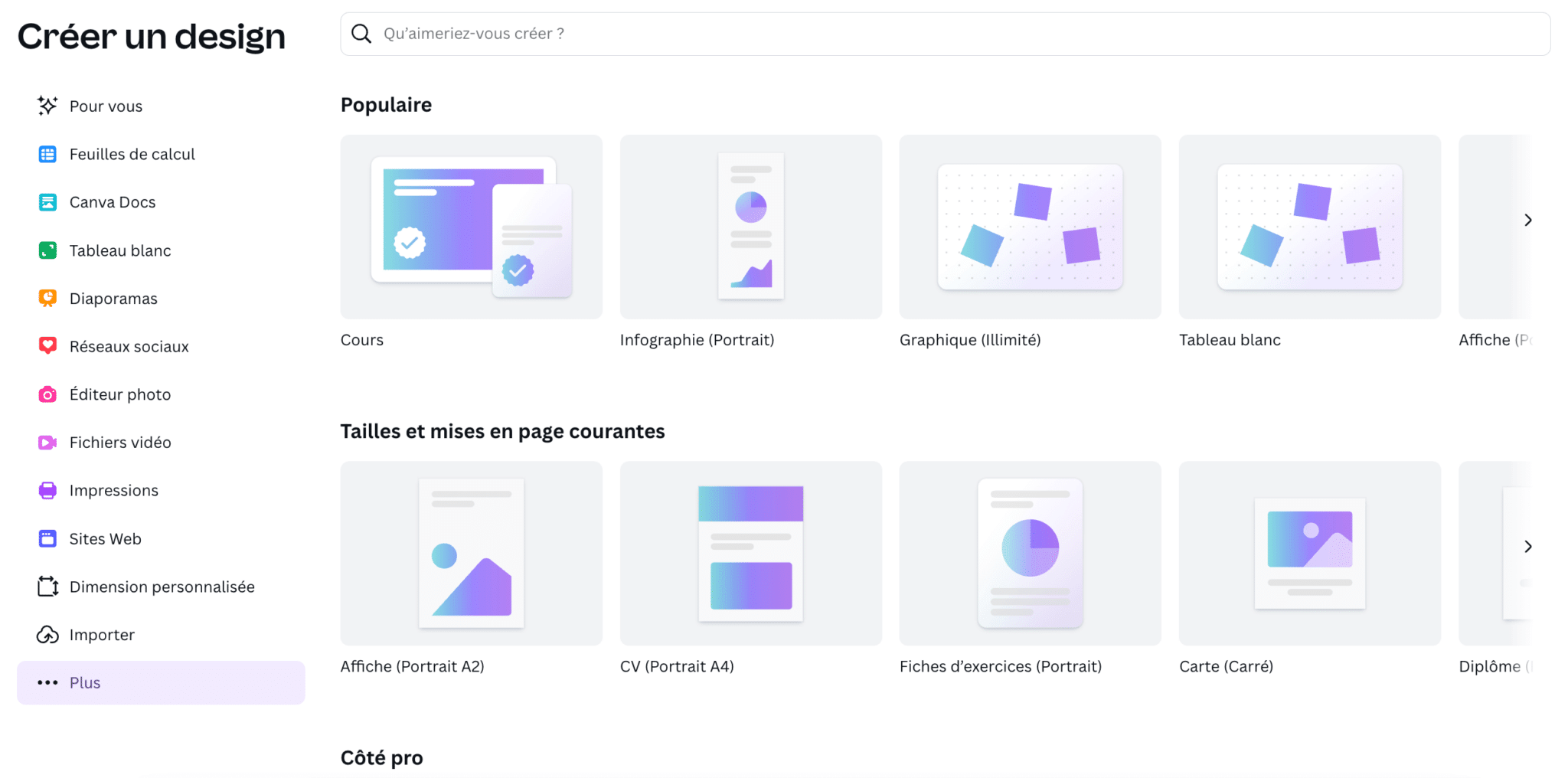
The advantage is that all these modules share the same operating logic. Whether you are creating a visual, a presentation or a video, you always use the same drag-and-drop editor. And that quietly changes everything, because you stay in a familiar, smooth environment, without having to readjust to each format.
A multi-format logic built to save time
Another strong point: Canva makes it very easy to switch from one format to another. Starting from a social media visual? In one click, you can turn it into a LinkedIn banner, a presentation slide or a vertical story. Everything resizes automatically, with the resize feature (available in the Pro version…).
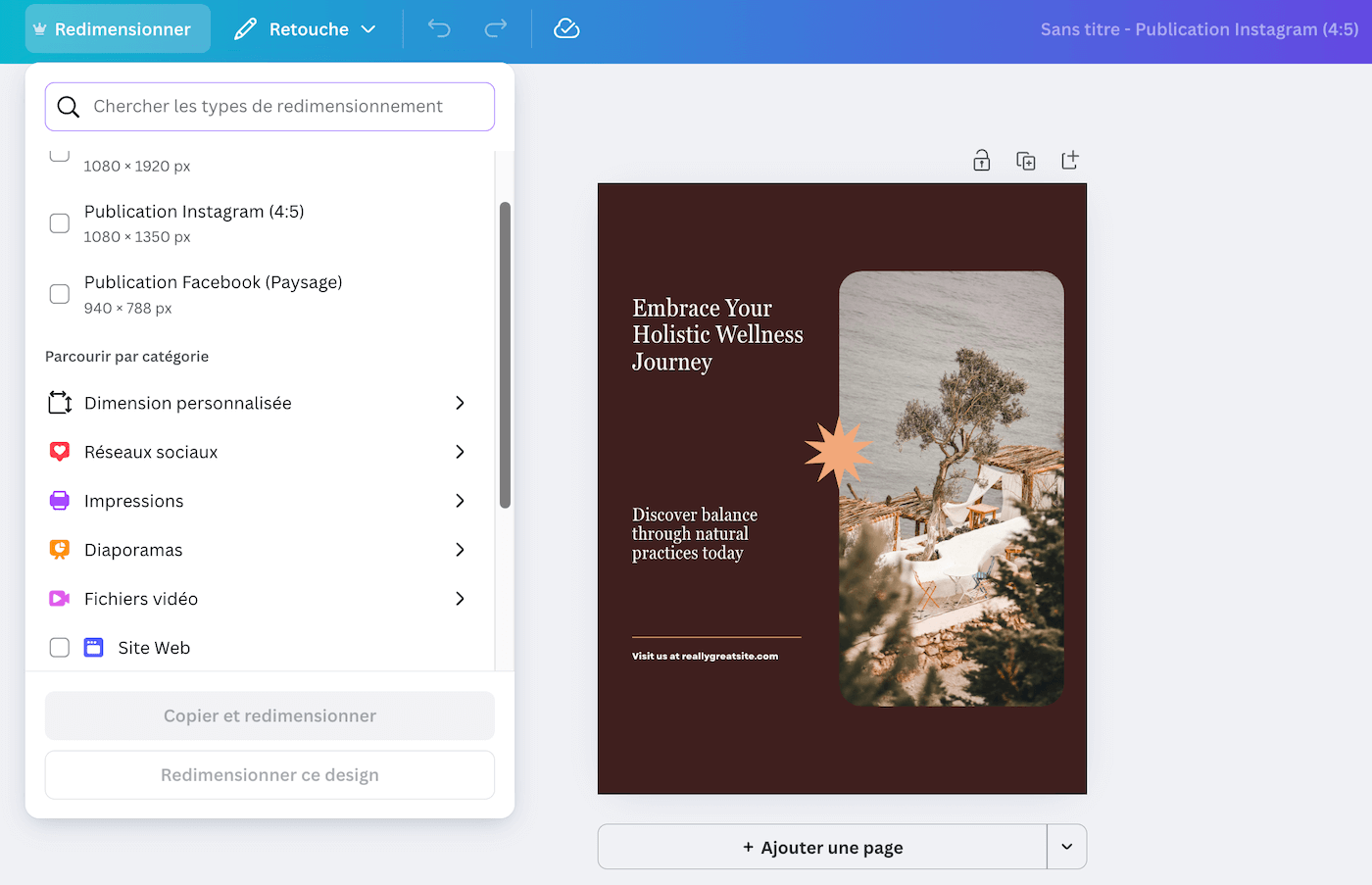
Let’s also mention the bulk create feature, which generates dozens of similar visuals from an Excel file by running the same graphic base with different texts or visuals, for example: 50 business cards, 30 personalized slides, a series of visuals by region or first name, etc.
You can tell Canva has worked hard in recent years to reduce friction on the way from idea to deliverable. For a solo user as for an entire team, this ability to produce fast and adapt without starting from scratch is a real plus.
Salesdorado’s takeWhat we really like is the overall consistency of the tool. You can make a presentation, a social visual, a video, a PDF doc or a mini landing page, all without ever leaving Canva. It is not the most powerful tool on the market in each vertical, but for 90% of needs, it more than does the job. And above all, you save a huge amount of time.
Brand kits to apply your brand guidelines automatically
In its paid version, Canva makes it very easy to structure your visual universe with what they call brand kits (now renamed “brand identities”): you define one or more color palettes, fonts, logos and even “in-house” visual templates that the whole team can reuse. The free version is limited to a single brand identity with 3 colors, Pro goes up to 5 and Business to 100.
It is particularly useful in a professional context. For example, a marketing team can create one kit for sales materials, another for HR posts, yet another for internal documents. That way, every new document starts on the right footing, without having to hunt down the guidelines or assets by hand.
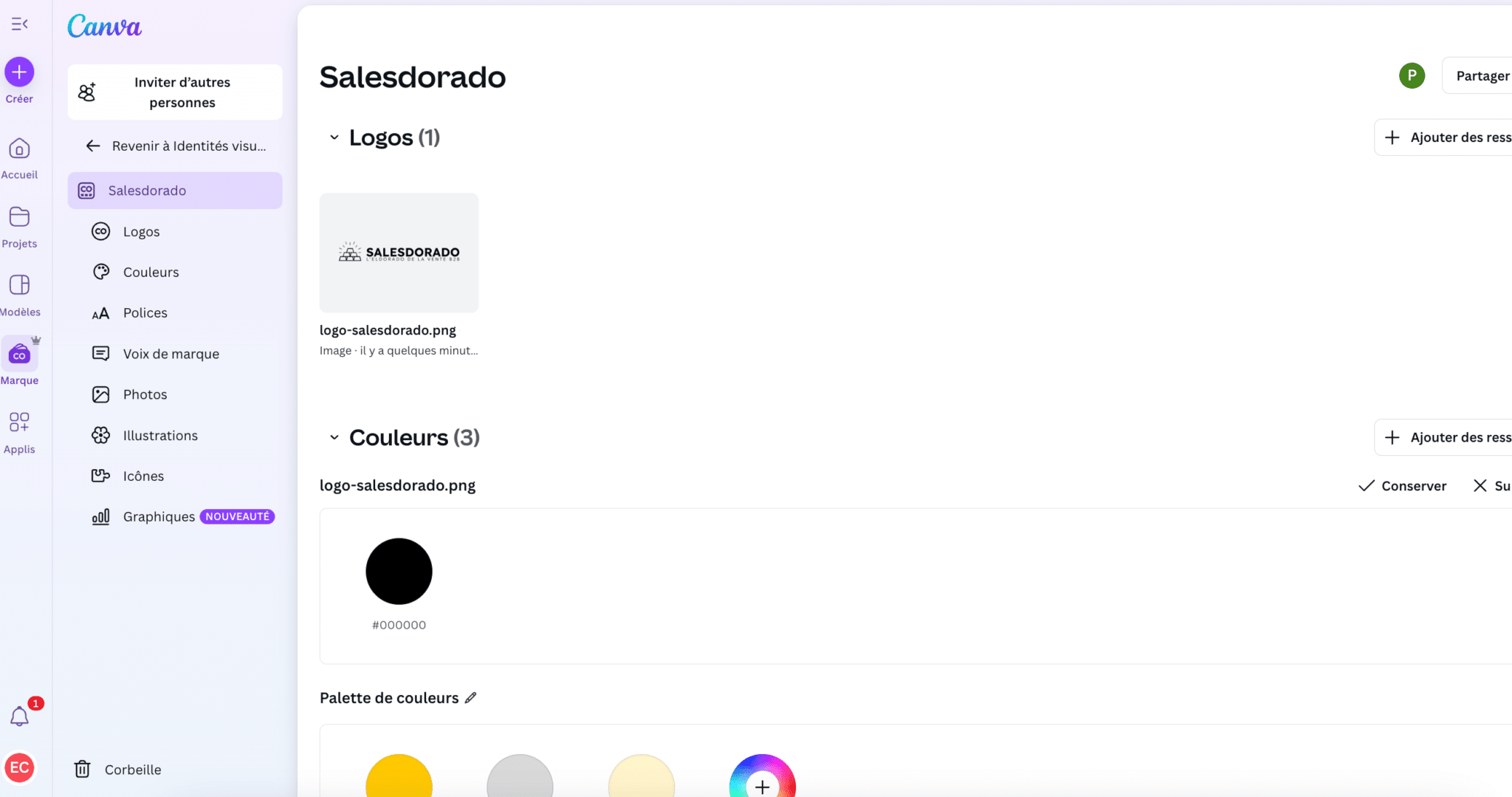
Another asset: brand kits are directly accessible in the editor, so you never have to leave your interface to stay consistent. And with the right editing permissions, you can control who can change what.
A real collaborative platform for teamwork
Canva is not limited to individual use. The platform was also designed to work as a team, with a very smooth logic: simultaneous editing, comments, notifications, organization by folders and roles…
For example, preparing a client presentation? You can co-edit it with your colleagues in real time, leave a comment on slide 3 (“add the latest figures here”), or get notified as soon as a team member mentions you. All without leaving Canva. If you use Google’s office suite, it is the same idea.
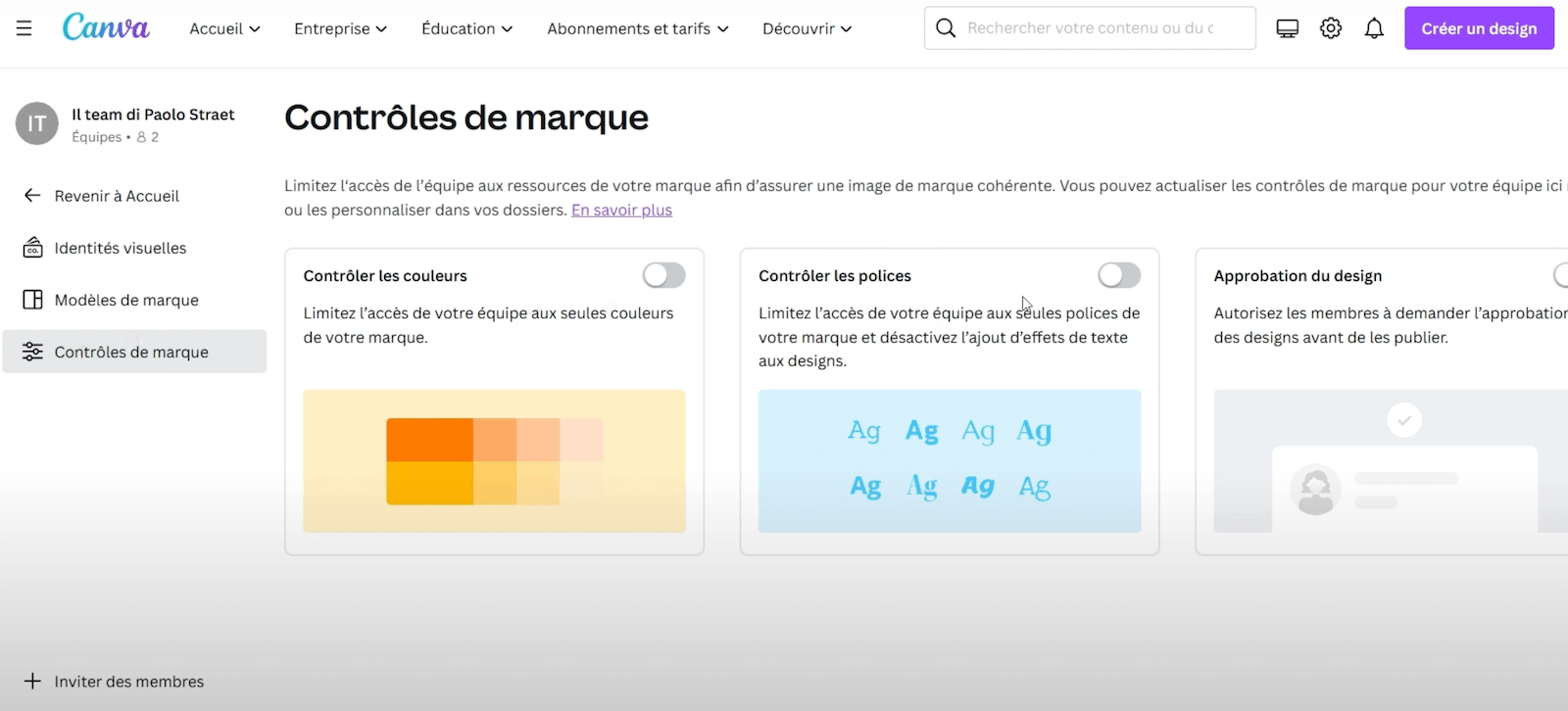
The interface also lets you structure the workspace: each team can create its own folders (“Social media visuals”, “Sales templates”, etc.) and manage access rights by profile:
- Administrators: management of access, brand kits and account settings.
- Editors: creating and editing designs.
- Viewers: viewing designs with no editing rights.
It is particularly useful in organizations where not everyone is meant to create, but everyone needs access to the right visuals, at the right time, in the right version.
User experience (Spoiler: Canva is a very easy tool to use)
Canva’s promise, from the start, is simplicity, and that is probably where the tool remains unbeatable. Even while adding complex features (video, AI, presentations, websites…), Canva manages to keep an interface that is clear, consistent and accessible to everyone.
Everything relies on drag-and-drop. You pick a template, you click, you edit the text, you replace the image: it is smooth, immediate and you see the final result in real time. No need to know how to handle layers, understand typography or figure out how editing software works. Canva can be picked up in a few minutes, and that is where its strength lies.
Immediate onboarding, even for beginners
Whether you are a student, a salesperson, a communications officer or an entrepreneur, you can start producing your first designs without any training. Canva guides the user at every step, with pre-designed templates, content suggestions and very clear visual cues.
For example, if you need to create a sales presentation, you just click “Presentation” in the left-hand menu, choose a style among the suggested templates, then adapt the text and images. Every block can be edited in one click, you can duplicate, delete or move elements with the mouse, without ever breaking the layout. The result is clean, structured, and ready to be exported or shared.
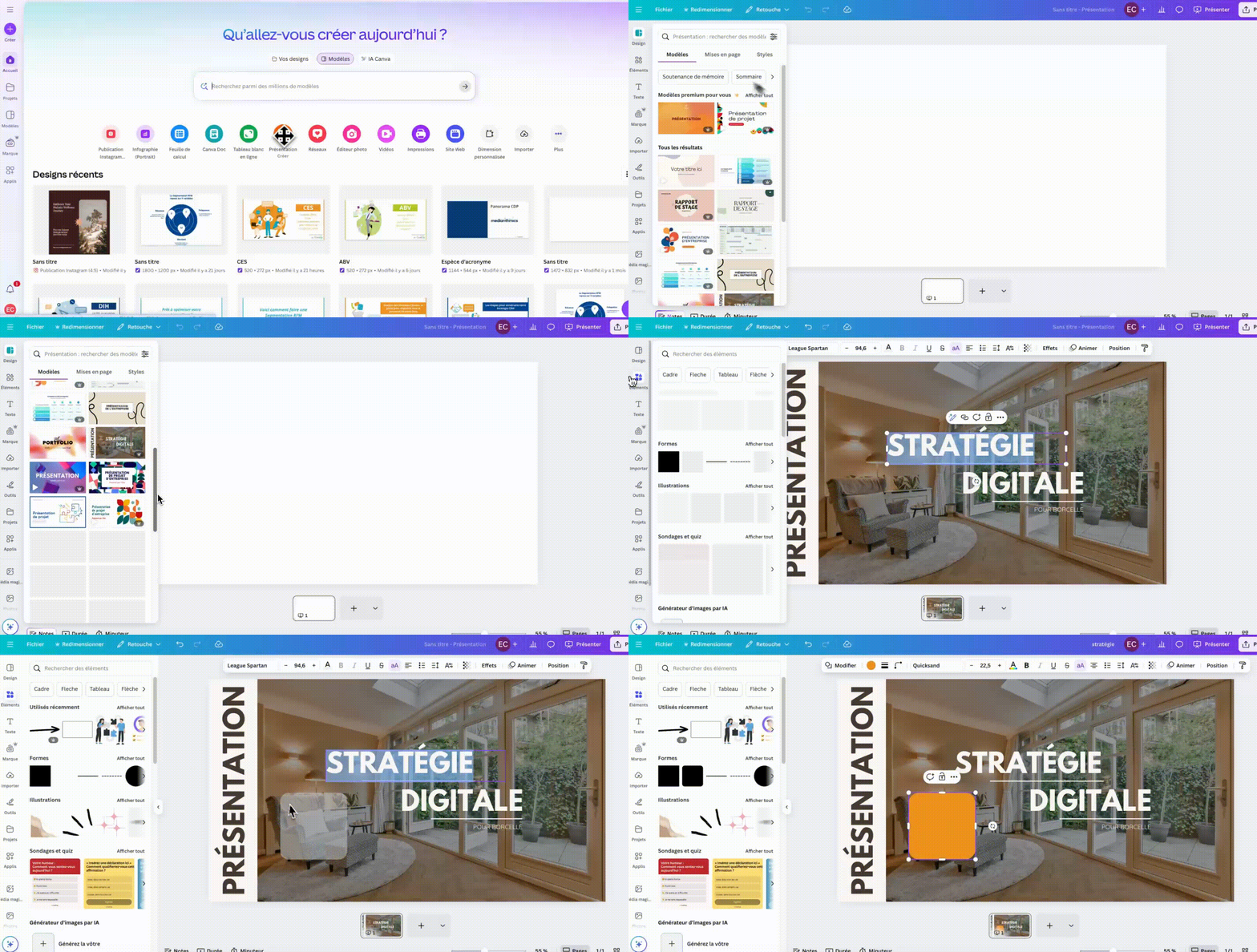
Another example: you want to make an introduction video for your product. No need for editing software: you open Canva’s video editor, import your clips (or use those from the built-in library), add a soundtrack and a few animated texts… and you are done. The tool even suggests suitable effects and transitions if you are not quite sure where to start.
Salesdorado’s takeWe have tried quite a few visual creation tools. None goes this far while staying this simple. That is why we recommend Canva without hesitation: you do not need to be a designer or a creative to turn out clean content. Even the profiles least comfortable with tools can produce professional materials on their own. And that changes a lot, especially in a company.
Canva and artificial intelligence
Canva has built artificial intelligence into the core of its product in a rather clever way, true to its identity. AI slots directly into everyday uses: generating a visual idea, rephrasing a text, cutting out a photo or animating content. All without leaving the classic editor interface.
The tools, grouped under the name Magic Studio, are many:
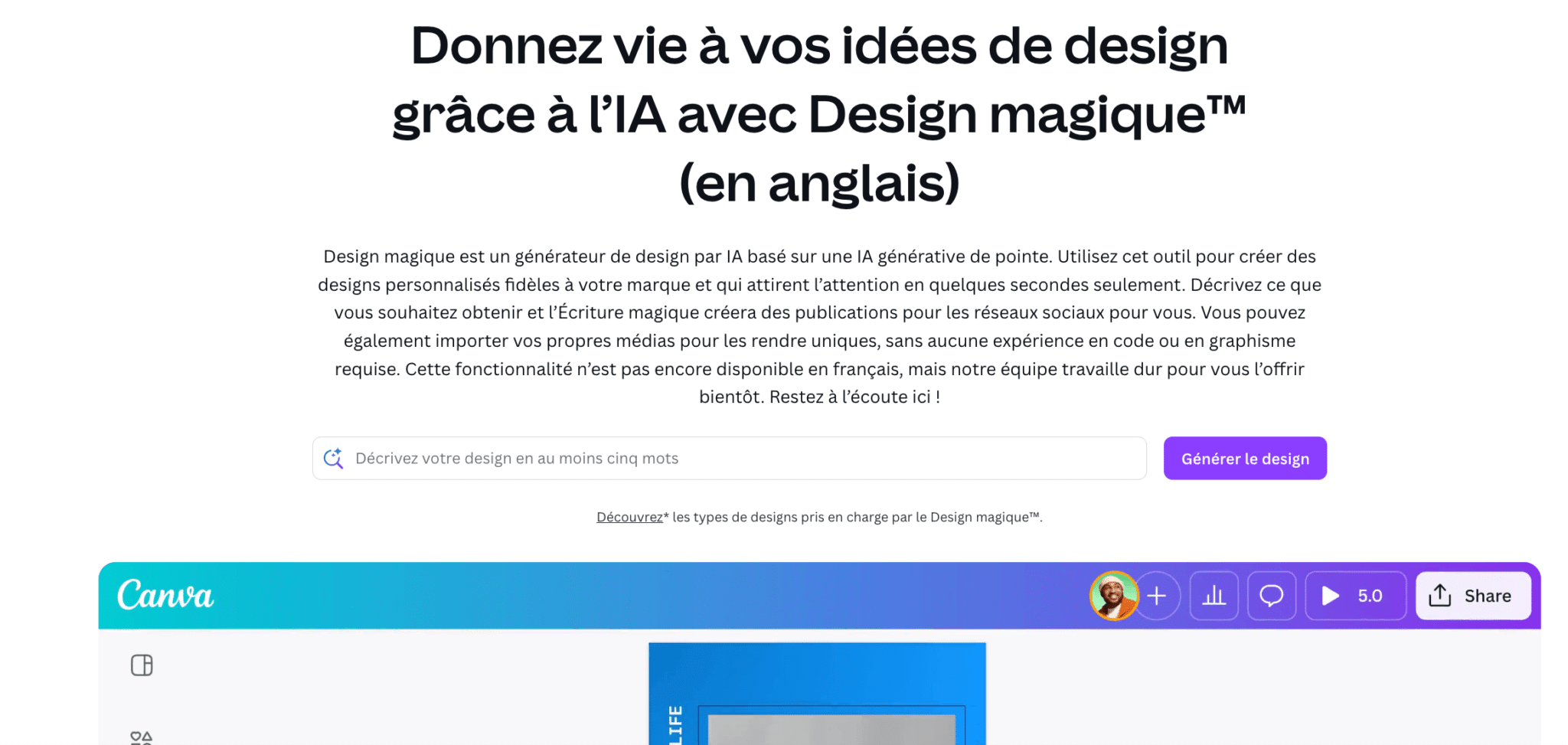
- Magic Design automatically generates visuals from a simple text prompt or an image file. For example, you upload a logo and ask “Create a modern LinkedIn banner for a consulting firm”: Canva offers you 4 or 5 first versions ready to edit. It is very useful when you are starting from a blank page, even if you should not (yet) expect the AI to do everything for you. There is room for improvement. Let’s say it is very promising.
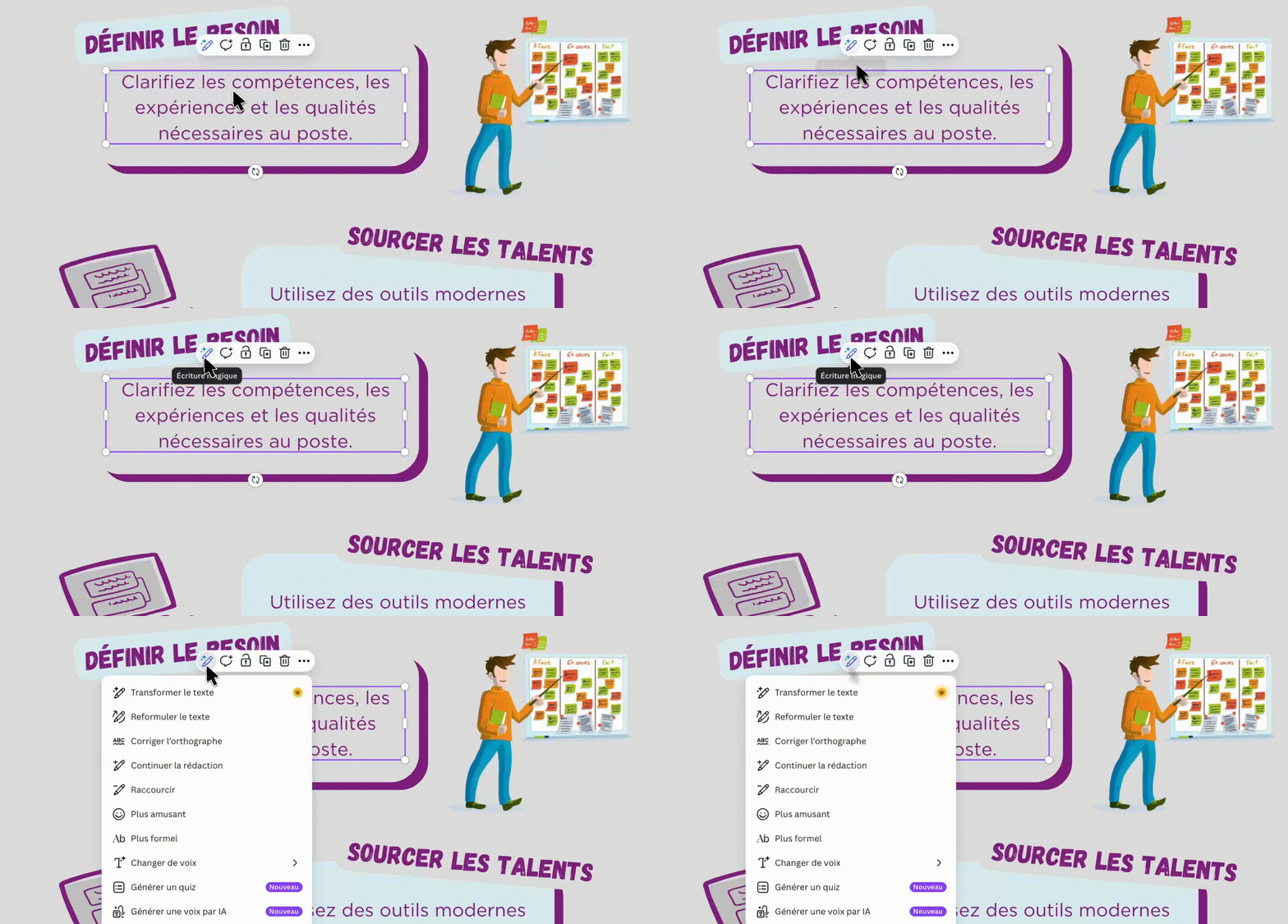
- Magic Write writes marketing or sales copy directly in your documents or presentations. You can use it to create an introduction, suggest several wordings for a headline, or simply save time on a paragraph. It is a simplified alternative to ChatGPT, built right into the Canva interface.
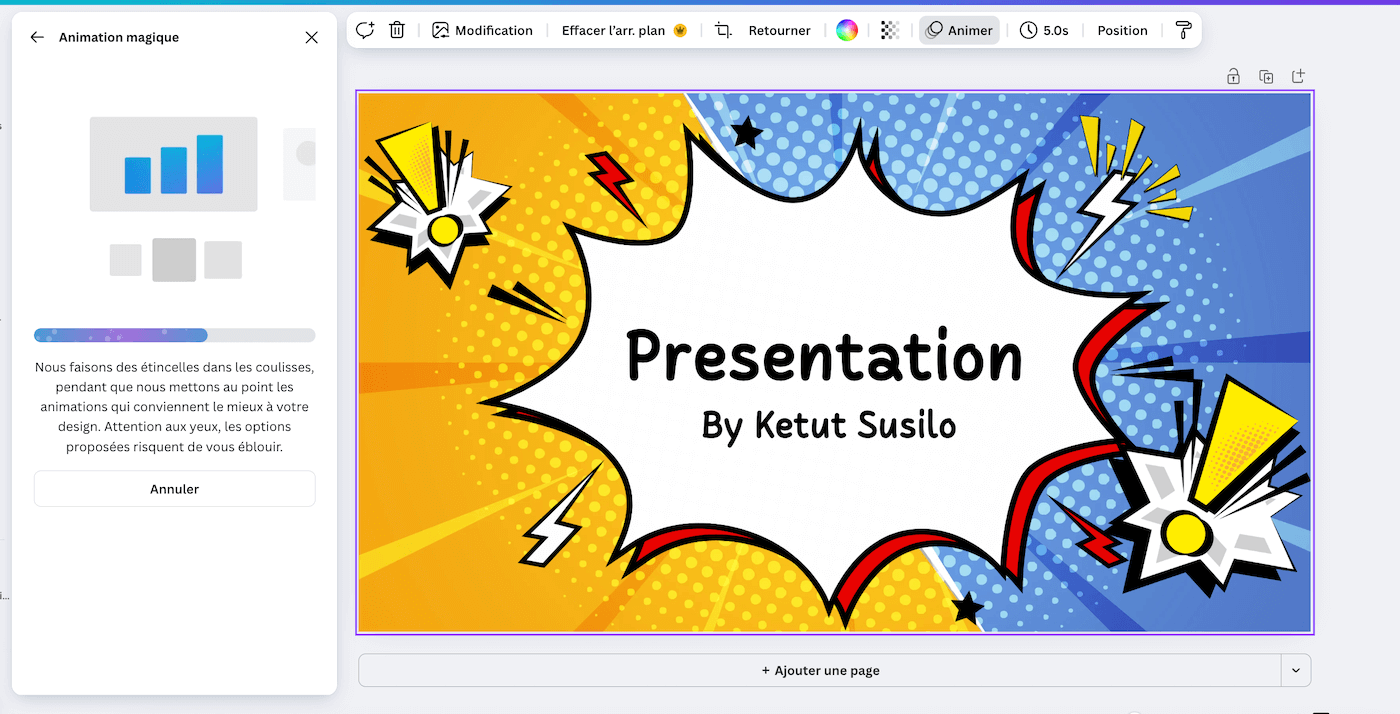
- Magic Animate automatically applies dynamic transitions and animations to your slides, videos or visuals. Just select a design, click “Animate” and Canva suggests a consistent animation for all the elements.
On top of that, Canva offers a whole bunch of small AI-based editing functions, accessible in one click from any image or video:
- Magic Eraser, which removes an element from an image when you brush over it with the mouse. Got a visual with an awkward logo or a person in the background? You erase it in two seconds, with no technical skills.
- Background Remover, probably the most used AI tool in Canva: it isolates a subject in a photo (product, portrait, object) in one click.
- Magic Expand, which automatically extends the visible area of an image. It is handy in particular if you have a photo that is cropped too tight and you want to “give it some breathing room” around the subject.
These tools are all designed to meet a simple need: produce more, faster, without cutting corners on the final result.
Integrations
Canva long operated in a silo, but in recent years the tool has seriously beefed up its integration capabilities. It now connects with most of the tools you already use every day: CRM, marketing automation platforms, cloud storage, collaboration tools…
If you are a B2B pro (this is Salesdorado after all 😊), Canva now offers native connections with several key platforms:
- HubSpot. For example, you can create a visual in Canva without leaving your HubSpot workspace and add it directly to an email, a landing page or a LinkedIn post. The design is automatically stored in the HubSpot media library.
- Mailchimp. In the same way, your Canva visuals can be imported directly into Mailchimp to feed your email campaigns.
- Salesforce. Through connectors such as Onlizer, you can sync Canva with your Salesforce CRM to generate or update materials automatically.
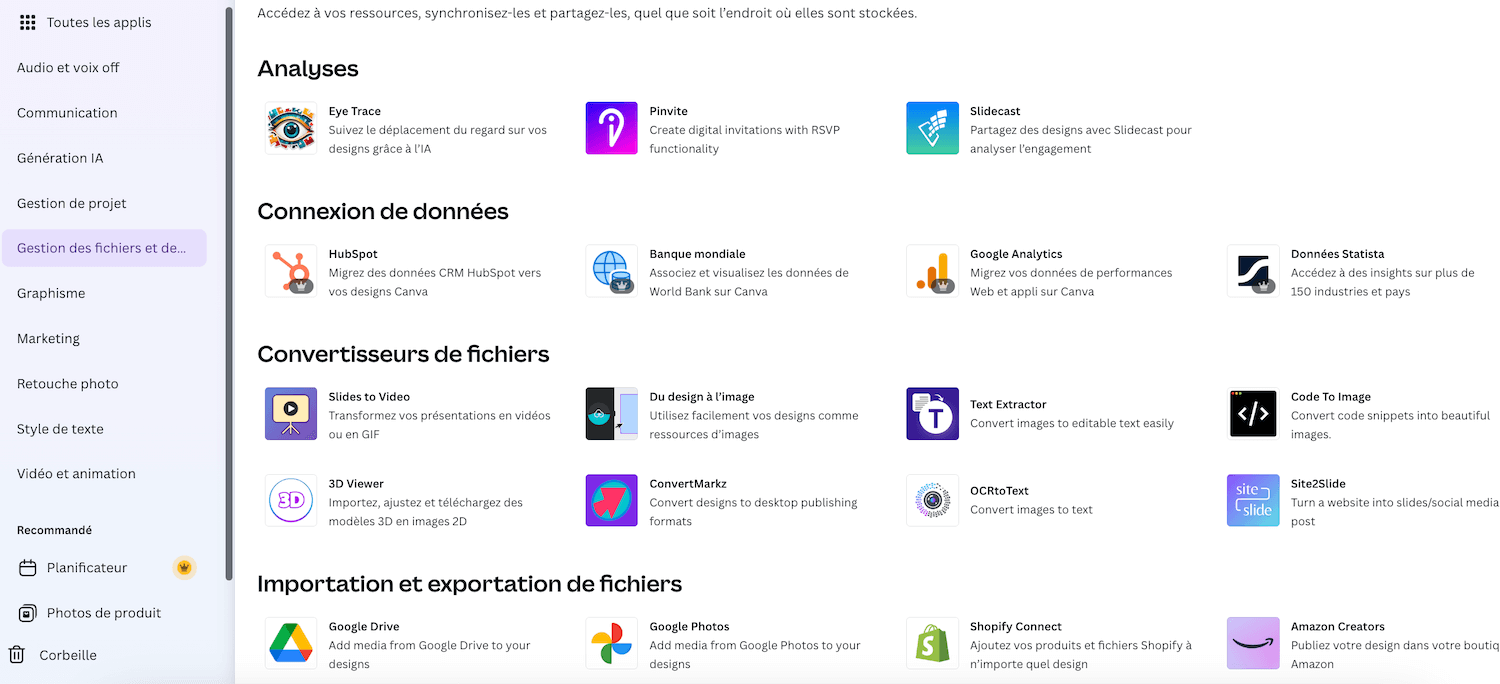
Canva also works very well with common collaboration platforms:
- Google Drive, Docs, Sheets: you can import Canva visuals into a Google document or pull data from a spreadsheet to feed a bulk creation.
- Microsoft Teams & OneDrive: you can share a Canva visual or document in a Teams channel or sync your files directly with OneDrive.
- Slack: you can share a design in a Slack thread with an automatic preview and the option to comment.
- Notion, Trello, ClickUp: Canva offers integrations or extensions that let you embed your visuals in your project cards, to-do lists or tracking documents in your project management tools.
Finally, on the automation side, Canva is compatible with Zapier and Make, which lets you connect the platform to hundreds of other tools, even without knowing how to code.
Plans & Pricing
Canva relies on a very gradual pricing model that lets you start for free and then move up depending on the size of your team, your needs or your governance requirements.
For comparable features, Canva remains far more affordable than the Adobe suites or traditional design software.
Here is an overview of the different plans available, with our analysis by user profile:
| Plan | Price (annual) | Key features | Storage | Best for |
|---|---|---|---|---|
| Free | €0/year | Basic templates, limited AI, a single brand identity (3 colors), standard export only | 5 GB | Students, individuals or occasional use |
| Pro | €110/year/user | Unlimited access to 141M+ premium assets, advanced AI tools, 5 brand identities, content planner | 100 GB | Freelancers, small businesses or solo marketers |
| Business | €170/year/user | All Pro features + collaborative work, team admin tools, 100 brand identities with approvals, access to Flourish | 500 GB | SMBs, agencies, marketing or HR teams |
| Enterprise | Custom quote | Multi-team management, SSO, SCIM, advanced governance, AI indemnification, dedicated CSM (from 150 seats), 24/7 support | 1 TB | Large organizations, structured communications departments |
Let’s say it again: the free plan is more than enough to get started or test the tool, and Pro covers 90% of needs if you work on the tool alone. To work collaboratively, you will need to opt for the Business plan.
Customer support
Canva’s customer support follows a logic that is standard in the SaaS world: the more advanced your usage, the more personalized the support you get.
The starting point, for everyone, is the help center (English only): a very complete knowledge base, well structured and regularly updated. You will find tutorials, answers to frequently asked questions, tips for getting the most out of the AI tools or solving billing issues. For non-English speakers, there are dozens upon dozens of video tutorials on YouTube…
Canva also offers an online chat system, accessible from the platform. The first level is often handled by a bot, but Pro, Business and Enterprise users can reach a human when needed.
Depending on your plan, here is what you can expect:
| Plan | Available channels | Support level |
|---|---|---|
| Free | Help center, certified courses, community forum, AI chat, support tickets, limited live chat | Mostly self-service |
| Pro | Help center, email, human chat | Online customer support (decent response times, in our experience) |
| Business | Same as Pro | Priority support, often faster for urgent requests |
| Enterprise | Chat, email, dedicated technical support with a case manager, 24/7 assistance, CSM and creative services (from 150 seats) | Ultra-responsive support and custom integration into the existing stack, with a Customer Success Manager for the largest accounts |
Try Canva without paying a centAccess thousands of templates, images and tools with Canva’s free plan. No commitment.