Phantombuster: the basics & how it is used
Phantombuster is first and foremost a sales automation tool.
The principle behind “phantoms”
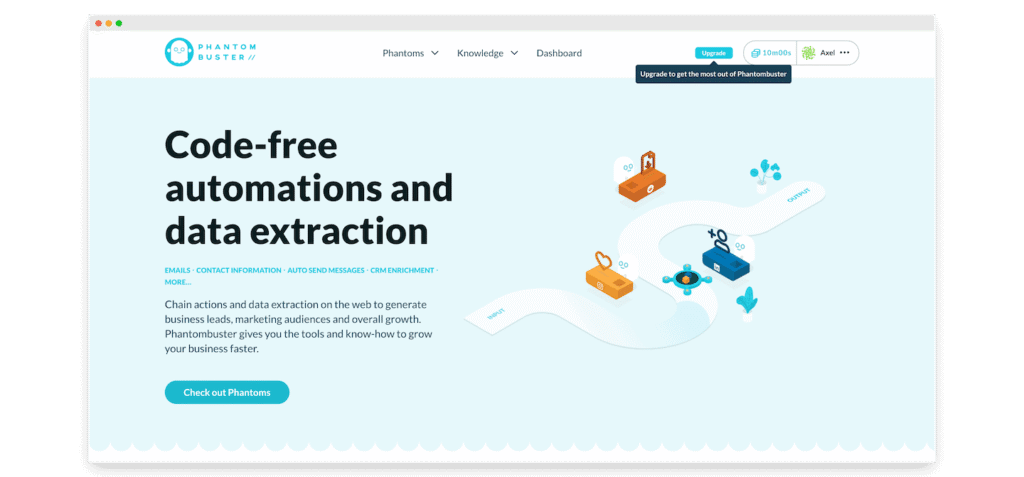
A phantom works like an API route. You send an input, and it returns an output.
You give it the URL of a LinkedIn post, for instance, and the phantom returns the list of LinkedIn profiles that commented on that post.
The phantom library runs deep, and that is a genuine Phantombuster trait: it offers very “atomic” pieces so you can pull back only what interests you, and dream up original setups.
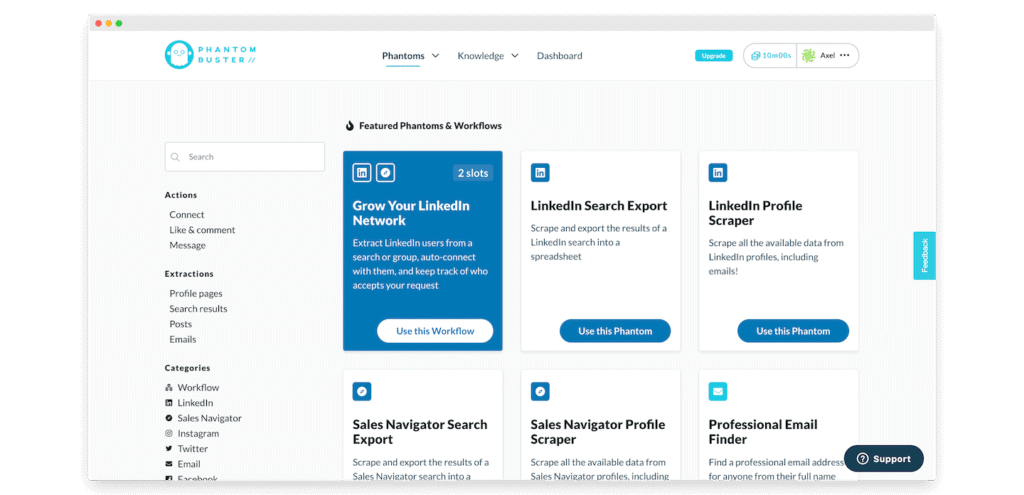
We counted around thirty of them, for LinkedIn alone!
The way phantoms are designed is very effective too. For every object you can imagine on LinkedIn (post, people, company, comment, invitation and so on), each possible action is available as a phantom.
That is a genuine Phantombuster trait compared with more “packaged” solutions such as waalaxy, dux-soup or linkedhelper, which are far more rigid because they are built around use cases the product team imagined.
If you have no particular urge to reinvent the wheel, Phantombuster also offers ready-made workflows, most of them rather well thought out.
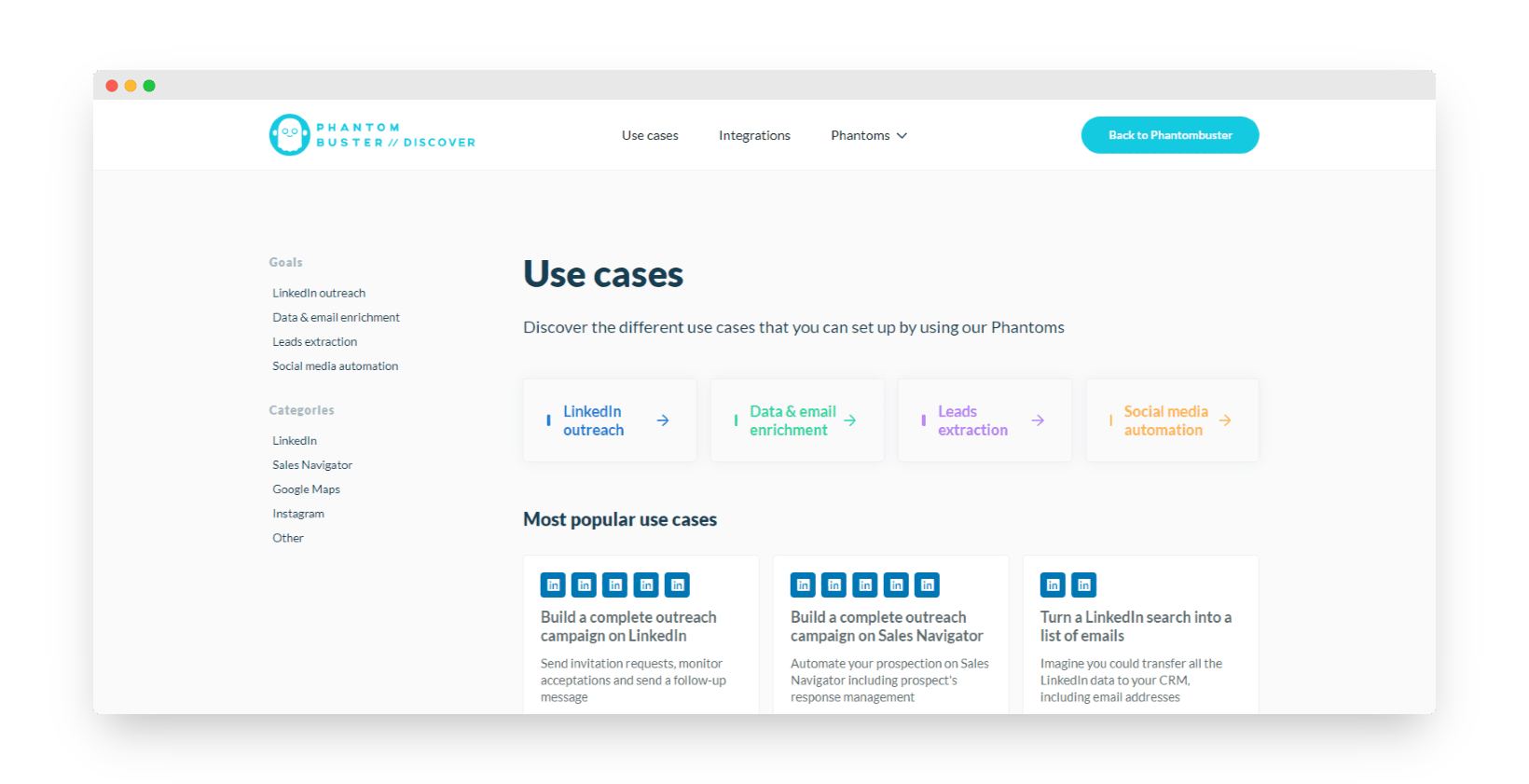
You can turn a LinkedIn search into a list of emails, for example, by following this Phantombuster scenario:
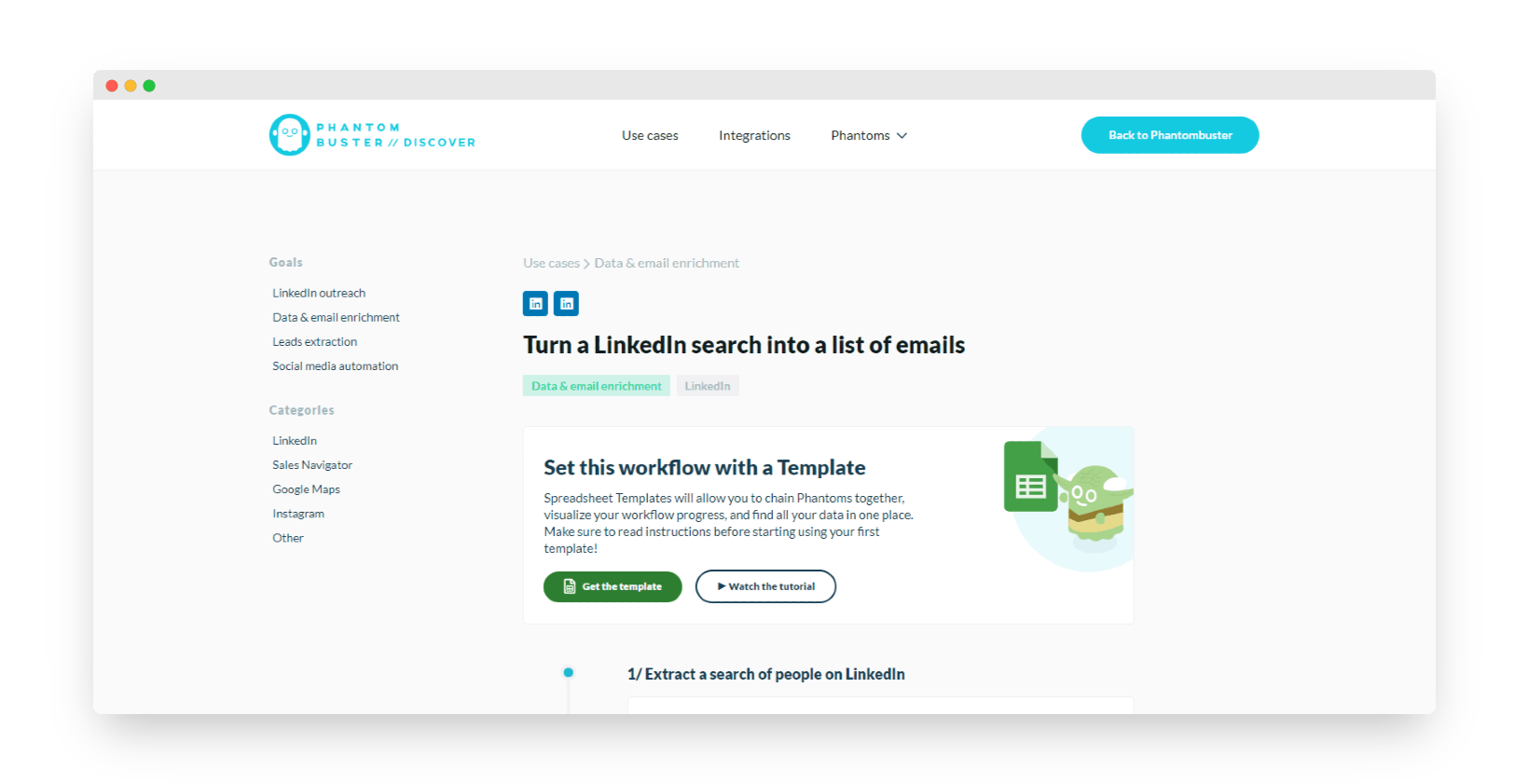
You simply extract the profiles of the people showing up in your LinkedIn search results, then use the scraping option to pull only verified work emails. And there you are with a prospecting email list ready to use!
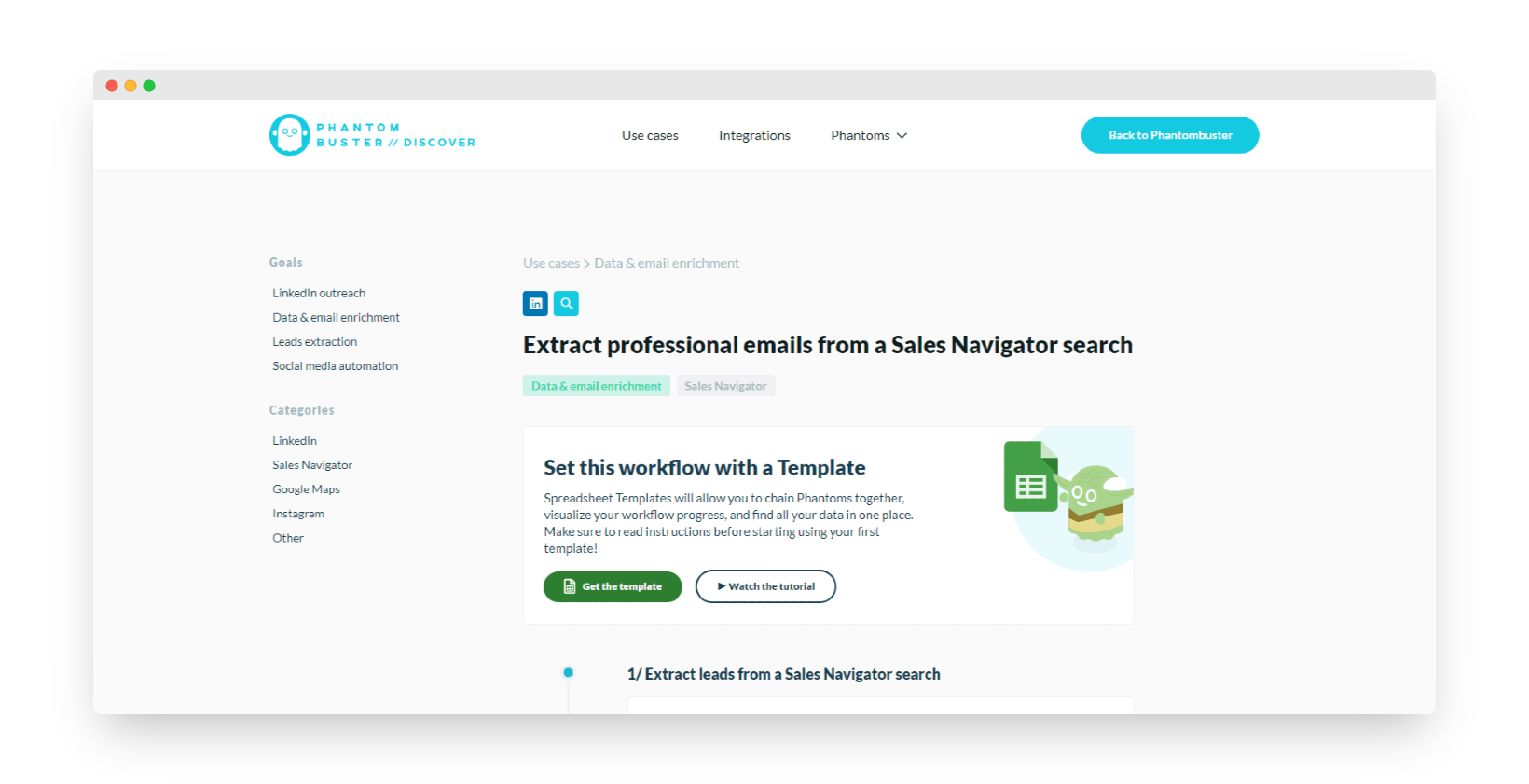
The same exists with Sales Navigator, which lets you extract the contacts behind an advanced LinkedIn search URL:
You can also use the following workflow, which enriches your CRM tool with your LinkedIn connections:
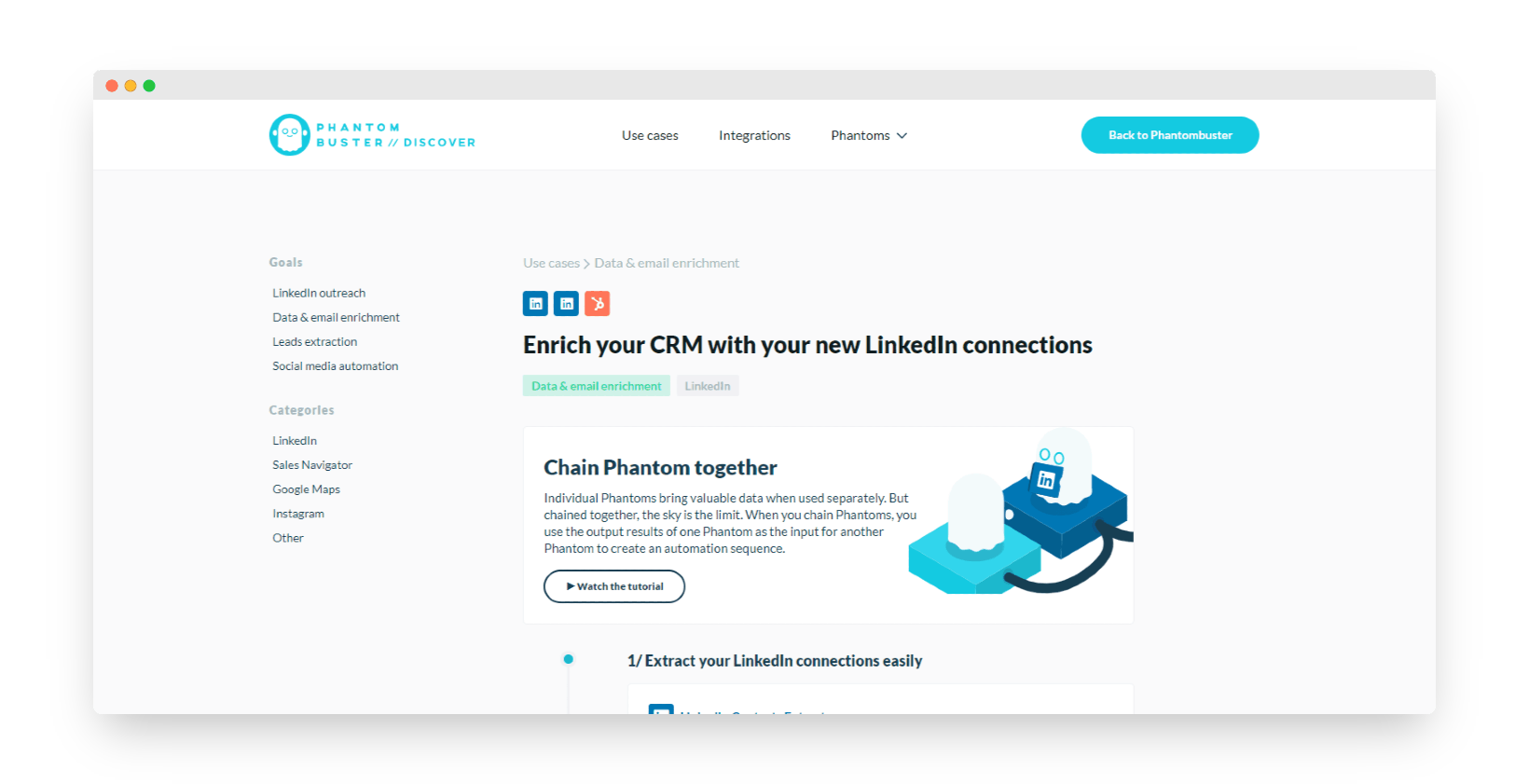
You can also, for instance, extract the work emails of your LinkedIn connections, then push the results automatically into your HubSpot CRM tool.
Using Phantombuster with Google Sheets makes for (almost) perfect flow-based processes
To our mind this is one of the most powerful sides of the solution, and yet one of the least documented. The 100% cloud philosophy and the excellent handling of inputs / outputs let you build almost perfect flows while keeping a hand on the process.
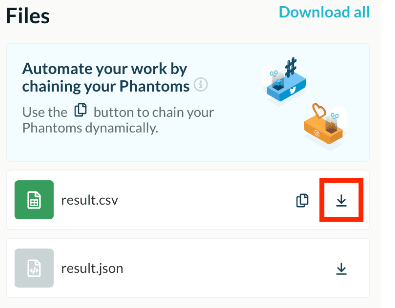
If your Phantom is set to launch automatically on repeat, your CSV file is updated at every launch. By importing that data into Google Sheets systematically, it refreshes with every new launch.
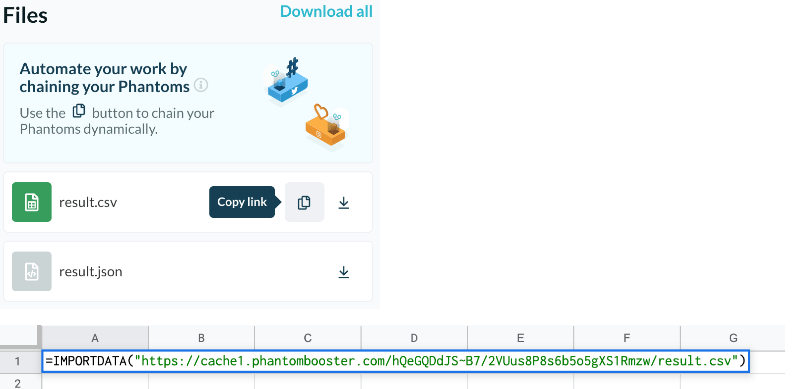
To import the results file into Google Sheets, start by opening a Google sheet and use the =IMPORTDATA function with the CSV link as its argument.
To get that link, simply click the « Copy link » button on the CSV file of your results, under the « Files » section on a Phantom console page.
The data refreshes automatically every 2 hours as long as the Phantom keeps running.
Why does that matter? When you automate, you never reach 100% accuracy. There will always be noise, empty results at best, and false positives at worst. Routing the data through your own spreadsheets lets you slot in human validation steps and mix robots & humans intelligently. Conceptually, that is very, very convincing.
The alternative is to use the “built-in” tool to chain Phantombuster scenarios. We are rather less keen on it, but it has its place in some cases.
The trade-off: the cost of full cloud
The main issue with full cloud is how easy it makes spotting abnormal activity on social networks.
You can layer on as many proxies and convoluted processes as you like, LinkedIn will always have a much harder time spotting odd activity if it comes from the same machine and the same IP as the “normal” activity.
The full cloud philosophy is very convincing on paper, but in practice it carries a hefty extra cost:
- The detection risk is higher, which forces more conservative behaviour.
- The maintenance and setup cost is rather higher too. Scaling calls for fairly complex technologies (proxies, multiple accounts and so on) which carry a cost of their own that is not to be brushed aside. Scraping LinkedIn locally may not be very sexy, but it really is far simpler for pulling back 10,000 rows.
A machine efficiency question we struggle to understand
There are surely good reasons we don’t know about, but we have always been a little disappointed by how fast the phantoms run.
It is made slightly worse by Phantombuster’s business model resting on machine time used.
Solutions such as CaptainData, Apify and others get results far faster on simple operations like a Quora scrape, or a “Company name to Website” (getting a website from a company name).
Not really a blocker in itself, but it stings a bit when you want to handle fairly large volumes.
The Salesdorado take
It is that last point that falls short for us, and that keeps Phantombuster a solution which always stays a little at the “Proof of Concept” stage. When it comes to scaling, we often move to something a bit more “robust”.
Automating your LinkedIn prospecting with Phantombuster
#1 Using Phantombuster to build lead lists
There are plenty of ways to build prospecting lists out of LinkedIn with Phantombuster:
- Extract the members of a LinkedIn group : to import every member of a group you belong to.
- Extract people from a LinkedIn search : your LinkedIn search becomes a lead list to work with.
- Extract people from a Sales Navigator search : pull a list of qualified prospects out of a Sales Navigator search.
- Extract a Sales Navigator list : export every prospect from your Sales Navigator lists.
- Extract the people who commented on a post : to collect the profiles of the people who commented on a post you find relevant.
- Extract the people who liked a LinkedIn post : a post looks aligned with what you do and got liked heavily ? You can extract every liker’s profile and turn them into leads.
- Extract the list of attendees at an event you are taking part in.
- Extract Sales Navigator accounts : build a list of Sales Navigator accounts.
- Extract a list of a company’s employees.
- Extract an employee list from Sales Navigator.
- Extract the companies from a LinkedIn search.
By putting the input / output of a few phantoms into the same Google Sheet, you can build fairly advanced data workflows.
For example:
- An “Accounts” (companies) search on Sales Navigator with the right booleans and so on, to get a list of ICP companies.
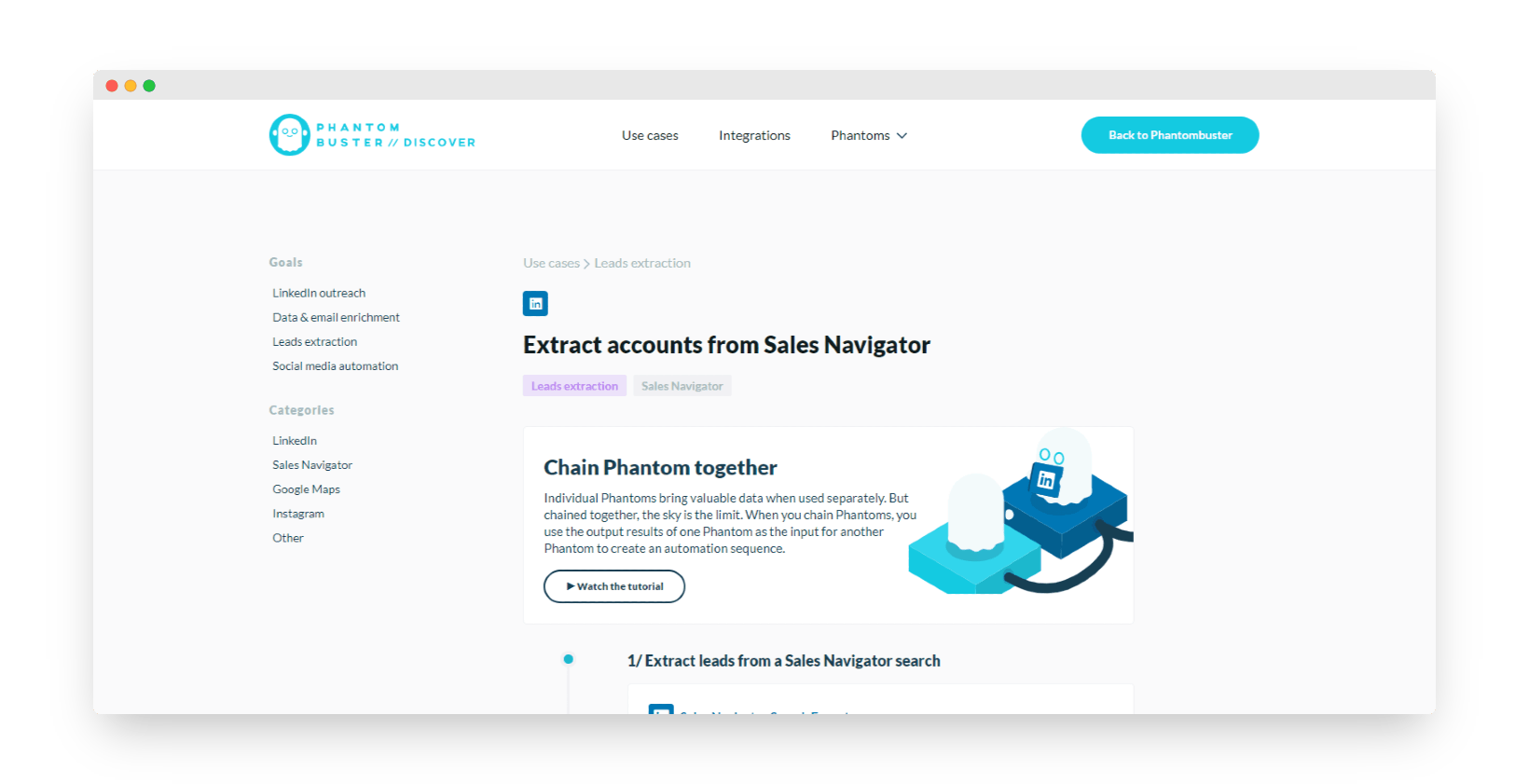
- Extract the employees matching certain filters for each of those accounts (you will have to tinker a little in the spreadsheet to build the URL you want out of the first step’s output)
- Pull every piece of information on each lead
- Pull an email for each lead
- Send them to Salesforce or Hubspot from Zapier, Integromat or your spreadsheet, whichever you prefer (and whatever validation steps you want before sending).
#2 Using Phantombuster to enrich prospecting files
You can enrich the data in your prospecting files by extracting what sits on LinkedIn :
- Turn your LinkedIn searches into a list of emails ;
- Extract the work emails from a Sales Navigator search list ;
- Extract the emails of the members of a LinkedIn group ;
- Extract the work emails of people who commented on a post ;
- Extract the work emails of your LinkedIn connections ;
- Find work emails from people’s names and company names ;
- Enrich your CRM with your new LinkedIn connections.
#3 Using Phantombuster to automate actions on LinkedIn
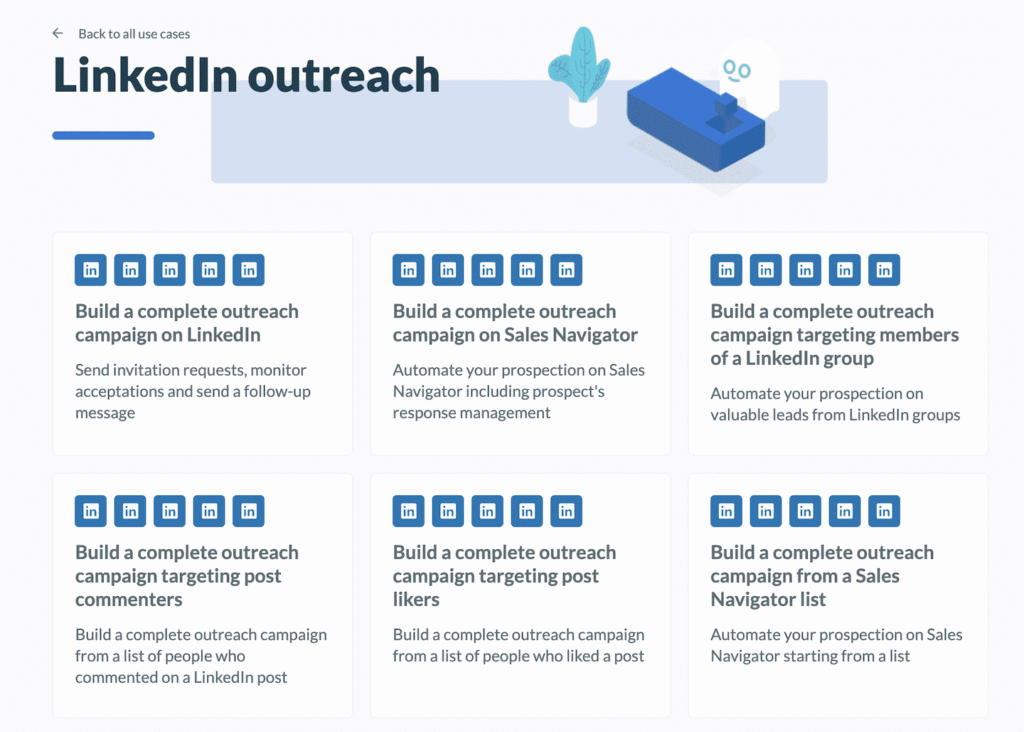
You can indeed use Phantombuster to automate your actions on social networks such as LinkedIn, and here is what is possible:
- Connect with every prospect from a Sales Navigator search ;
- Connect with every profile from a LinkedIn search ;
- Connect with every member of a group ;
- Send an invitation to everyone who liked a post;
- Send an invitation and/or a message to everyone who commented on a post ;
- Send an invitation and/or a message to the people who viewed your Sales Navigator profile ;
- Automatically like every post from your company and your colleagues ;
- Automatically send a welcome message to all your new connections ;
- Automatically send an invitation to your LinkedIn events to all your contacts ;
- Invite your contacts to follow your company page ;
- Track mentions of your favourite brands.
Use workflows too, to make life easier. You can design complete campaigns from LinkedIn, for instance.
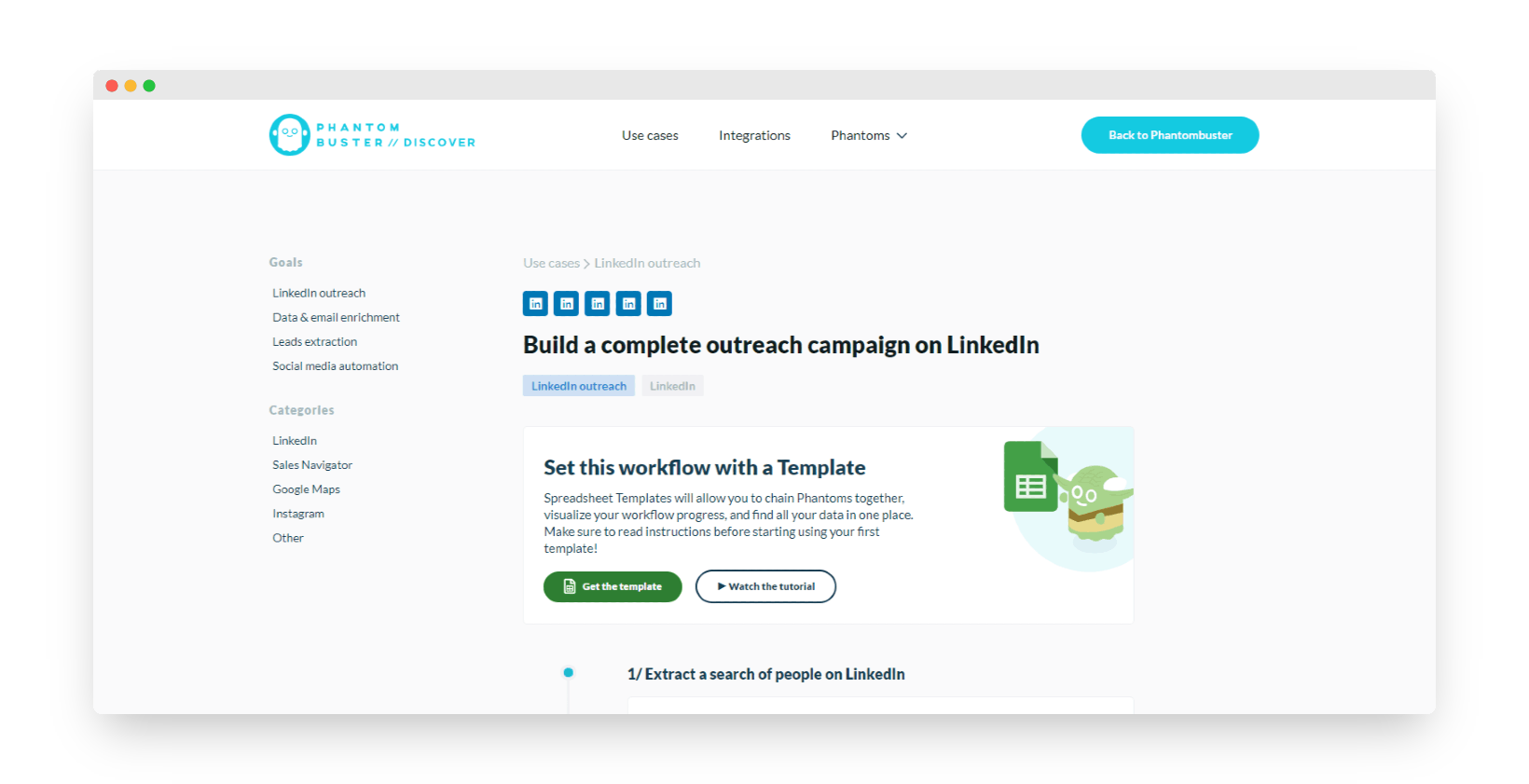
Follow these steps:
- Extract a profile search
- Send connection invitations to the profiles
- Track the acceptances you get
- Send a welcome message
- Track and handle the replies to your messages
Your LinkedIn lead generation campaign is then fully automated.
Waalaxy puts it rather well: Phantombuster lets you run all of these actions, but the reporting side isn’t built. It is technically within reach since the raw data is exported to CSV at the very least, and, if you have been following, into a nice clean spreadsheet. But on the dataviz side, it is do it yourself.
Another important point: Phantombuster does not let you get around the cap of 100 invitations a week. They explain why here if you are curious.
Broadly, if you are after a LinkedIn prospecting solution, go for Waalaxy, or a good old Dux-soup as a Chrome extension.
Phantombuster’s other use cases
Facebook, Instagram, Twitter and so on
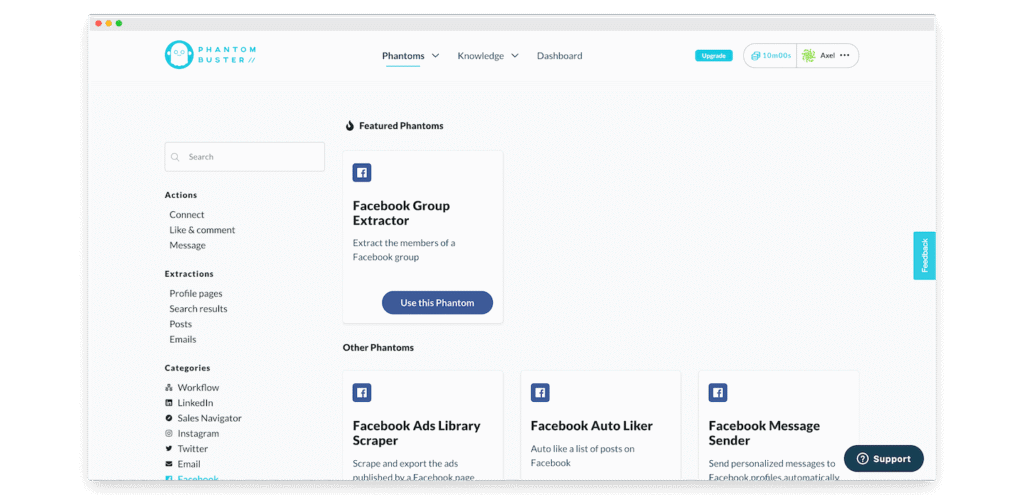
You find much the same way of working on the other social networks.
You can export lists of followers or of people who interacted with your content, or with certain accounts’ content. It is a powerful tool for spotting “influencer” accounts on Instagram in B2C or Twitter in B2B, for example.
On Facebook, the phantoms are very powerful for making the most of groups (commenting quickly on relevant posts, extracting the group member list, finding a Facebook account from a first name & surname, and so on).
Google Maps
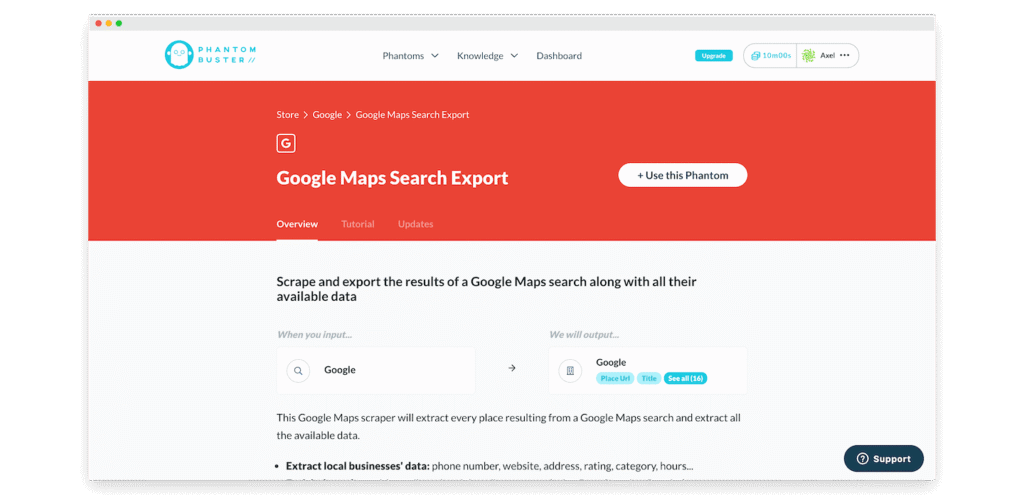
Google Maps is a very powerful data source for “brick & mortar” targets, in other words for small local businesses: restaurants, professional practices, shops and so on.
On the whole we aren’t hugely convinced by this phantom (we find it frankly a bit slow), but do know it is an option!
Other use cases
Phantoms and use cases are not in short supply. Plenty of room to be creative 🙂
On our side, the one we single out is the Slack integration, which notifies you when certain keywords come up in one or several Slack groups. In B2B, that can be a channel worth having and a source of plenty of interesting conversations.
Beyond that, you will find plenty of scrapers, and slightly more custom tools such as the email finder or the domain name finder.
Phantombuster: pricing
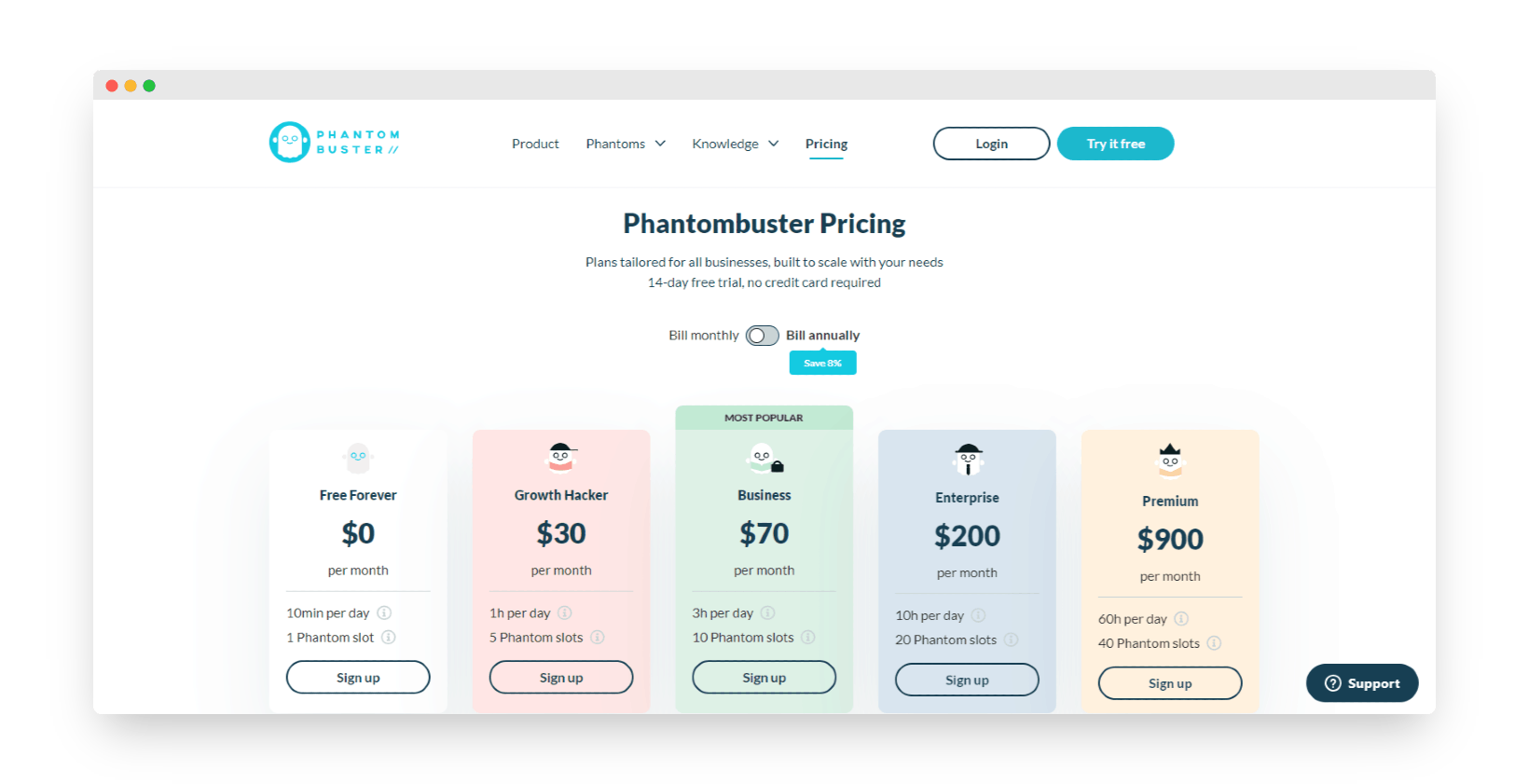
Phantombuster splits into 5 different plans :
- The completely free « Free for ever » plan, which gives you access to Phantombuster for 10 min a day and 1 slot. You get the essential base functions available on Phantombuster, namely: automatic launches, access to every feature across the various platforms, email and Slack notifications, access to the community, and 1GB of online storage.
- The « Growth Hacker » plan at $30 / month for 1h a day and for 5 slots plus everything available for free, along with access to the Captcha service (100/day) and 20 Email Discovery a day (an option we will come to shortly).
- The Business plan at $70/month for 3 hours of machine time a day and 10 Phantombuster slots, plus 10GB of online storage. The Captcha option rises to 200 a day and Email Discovery moves to 70 a day.
- The Enterprise plan at $200 / month lets you use Phantombuster 10 hours a day with 20 slots, 20GB of storage and Captcha and Email Discovery options at 300 a day.
- The Premium plan at $900 / month lets you use Phantombuster for up to 60 hours a month and create 40 slots, with access to 30GB of storage. The Email Discovery option moves to 1500 emails a day and the Captcha option to 400 a day.
The Captcha option lets you get past those verification boxes platforms often use to make sure you aren’t a robot.
The Email Discovery option gets you the work email addresses of 80% of your contacts from nothing more than the people’s names and the company names you already have.
Have you tried Phantombuster? What did you make of it? Leave us your impressions in the comments!