#1 Contact management in Insightly
To add users, click System Settings in the drop-down menu in the top right corner, then click Users or Teams.
The administrator can grant specific permissions to users and assign them automatically to various owners or contacts, either manually or through a workflow process.
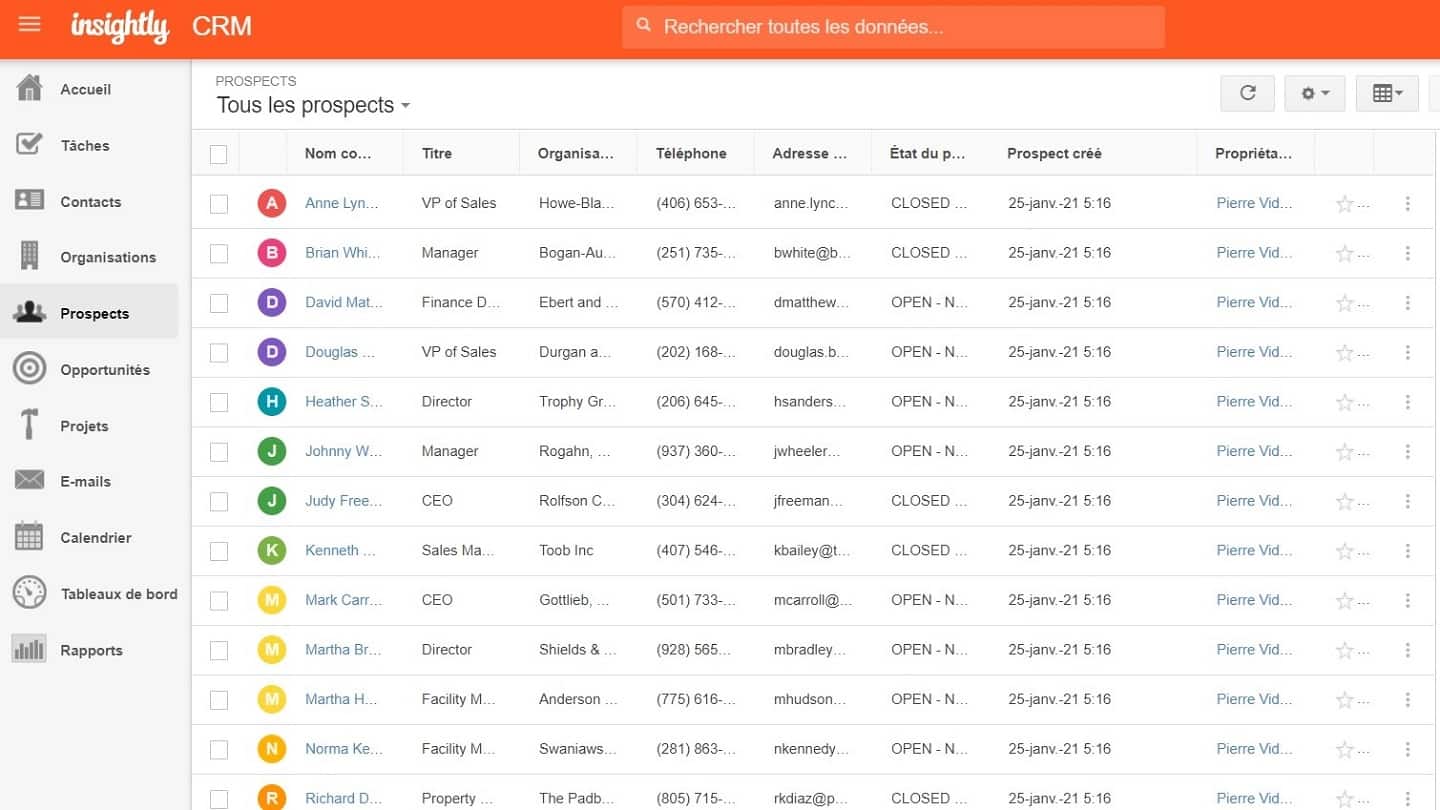
To create a lead, click the Leads tab on your left, then the red New Lead button. Every entry you create in Insightly CRM, whether it is a project, a lead or anything else, is called a “record”.
When you add a new record, you can set visibility levels for everyone, for the record owner only, or for specific team members.
You can create detailed records, link them to one or several projects, contacts and even to other records. The Contacts section gives users every tool they need to reach specific contacts.
Beyond names, titles, phone numbers and emails, it shows your contacts’ photos. The feature may look minor, but it adds a personal dimension as well as another way of recognising your contacts more easily.
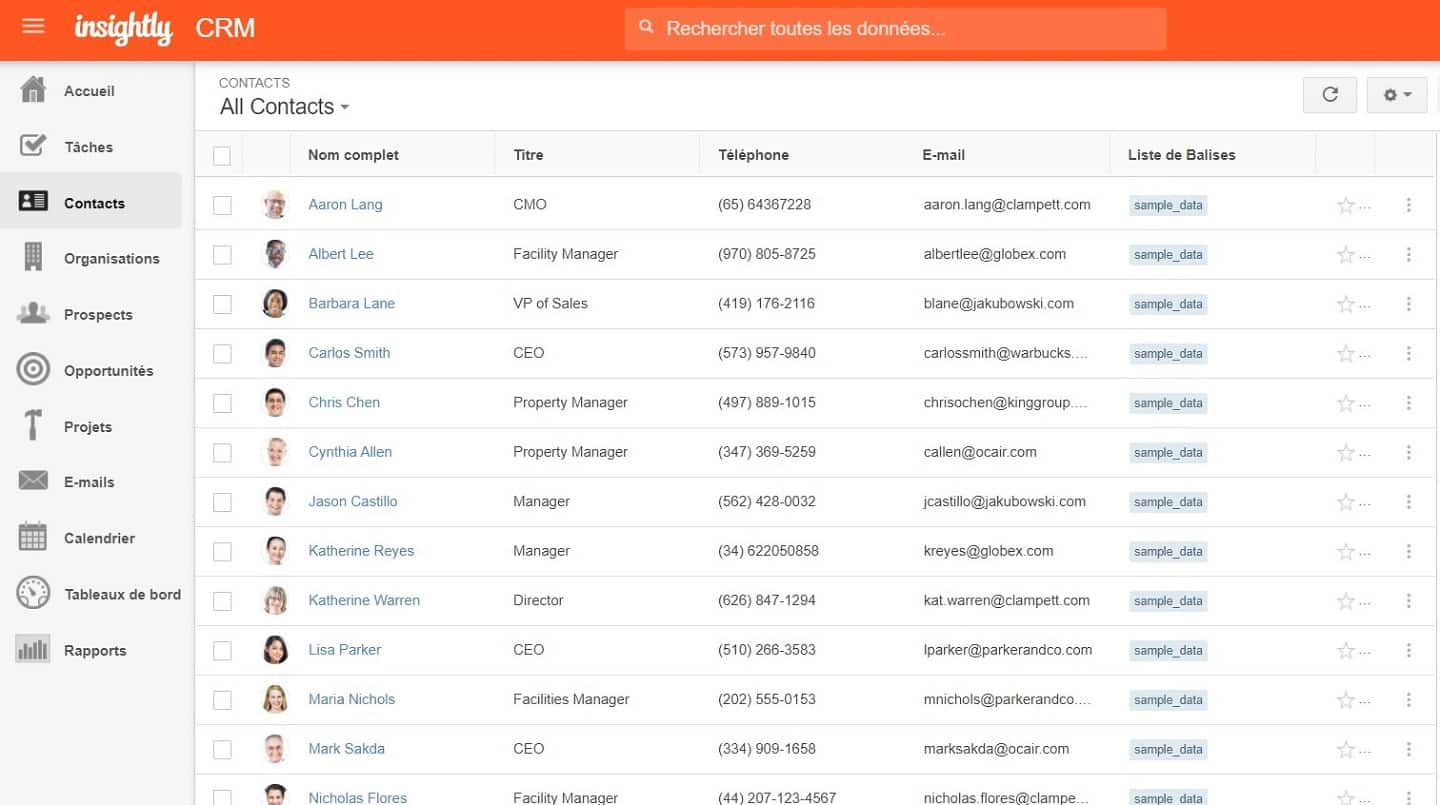
Alongside the usual contact information, you can include data such as their status and their source (a referral, a web form, and so on).
When leads turn into potential customers, they are “converted” and moved into the “Opportunities” category. That is the point at which they become a contact.
Insightly also includes lead assignment rules. Users can add assignment rules through a web form when importing a CSV file, an Excel file, or through the Insightly API.
#2 The sales funnel in Insightly
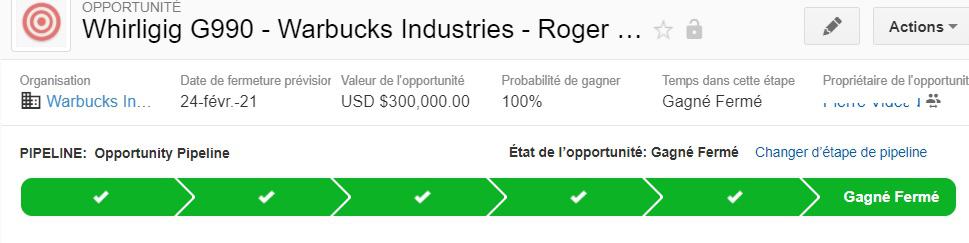
Insightly also allows you to create pipelines, as other platforms such as Pipedrive CRM and PipelineDeals do. A pipeline is a series of stages that makes sure your sales reps all follow the same process.
The pipeline lets you easily track how your opportunities progress through the sales funnel. Insightly, however, only lets you create pipelines for opportunities (converted leads) and projects.
You can also create an activity set, that is, a series of tasks for each stage. Unlike pipelines, you can generate activity sets for leads, opportunities, contacts and more.
You can manually add an activity set to a lead or to a group of leads. One of the most useful features of a lead management tool is being able to automate the initial response so you can reach several potential customers at once.
Insightly also lets you set up workflow automation through a series of forms. For instance, you can automatically send an email to every new lead, then send them a follow-up email a week later if they do not reply.
#3 Ease of use and setup
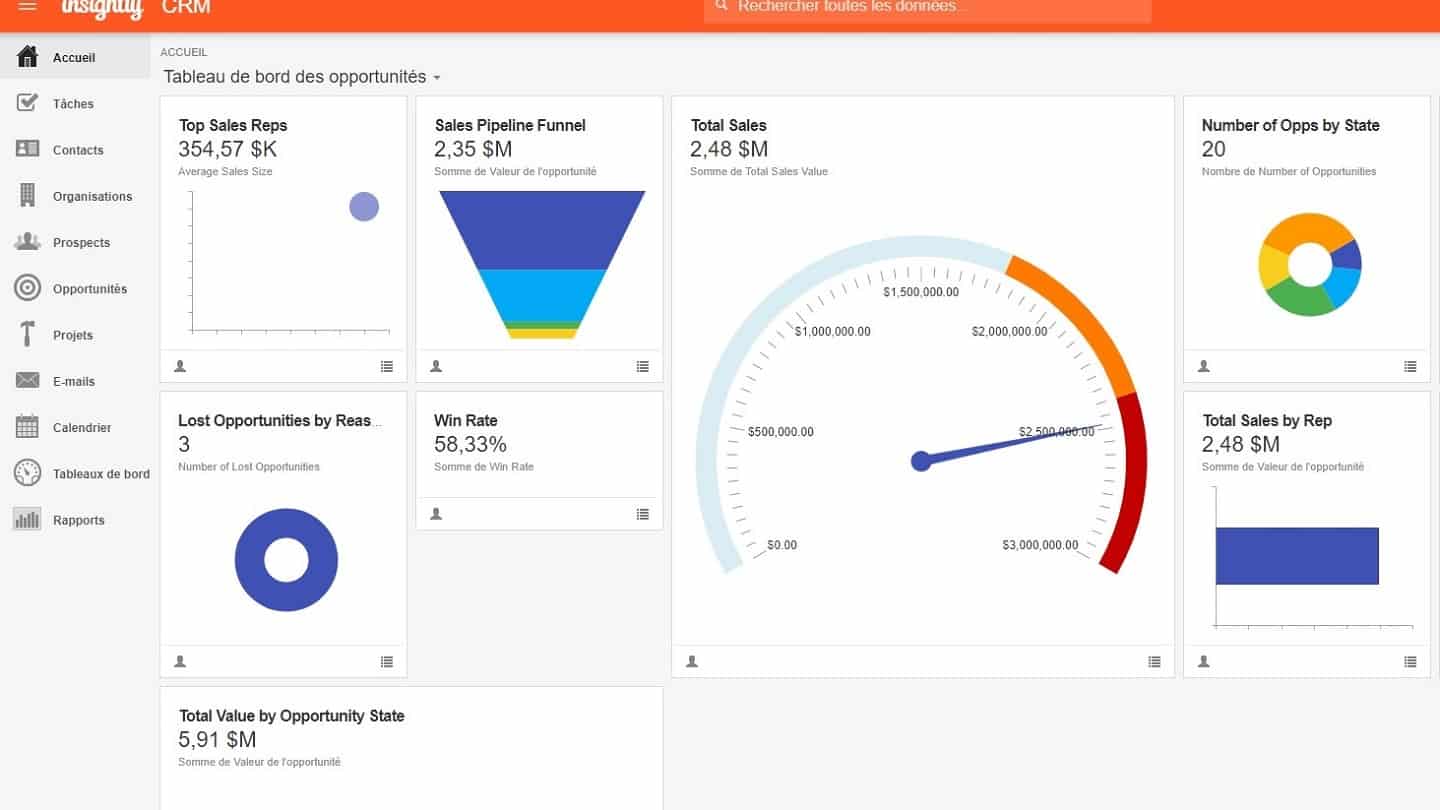
When you log in to Insightly for the first time, you will notice a friendly, intuitive interface. On the left-hand side of your screen, you will find the main menu with all the important links:
- Tasks,
- Contacts,
- Organisations,
- Leads,
- Opportunities,
- Projects,
- Emails,
- Calendar,
- Dashboards and,
- Reports.
Insightly assigns a Customer Success Manager to new customers to guide them through onboarding. The web interface is surprisingly fast. Navigation is quick with no friction at all. Insightly’s ability to adapt to any screen size is remarkable.
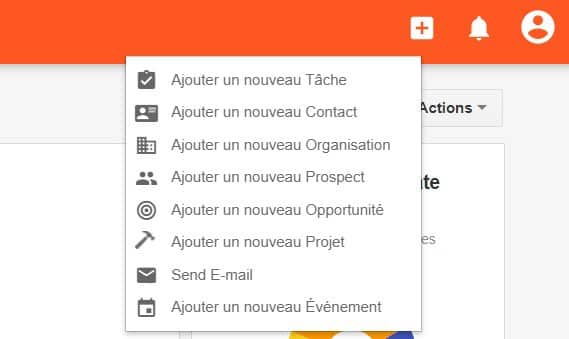
A quick button is available by clicking the (+) icon on the right-hand side. It gives one-click access to the most used functions, such as Add a new task, Add a new contact, Add a new organisation and so on.
In the “Home” section, you will find the opportunities dashboard. There you will see plenty of dynamic widgets that let every user grasp their situation at a glance, thanks to a wealth of data and key indicators.
These widgets move and resize automatically depending on screen size. They are also easy to arrange thanks to drag and drop.
#4 The integrations Insightly offers
Like most of the best CRM software, Insightly offers plenty of integrations. Among them, Microsoft Power BI. It adds in-depth analysis to Insightly’s CRM reports.
To take advantage of it, you need a Microsoft account so you can connect Power BI to Insightly through the Insightly API.
Power BI then pulls Insightly’s CRM data and populates a dashboard showing opportunity forecasts, win rate and productivity metrics.
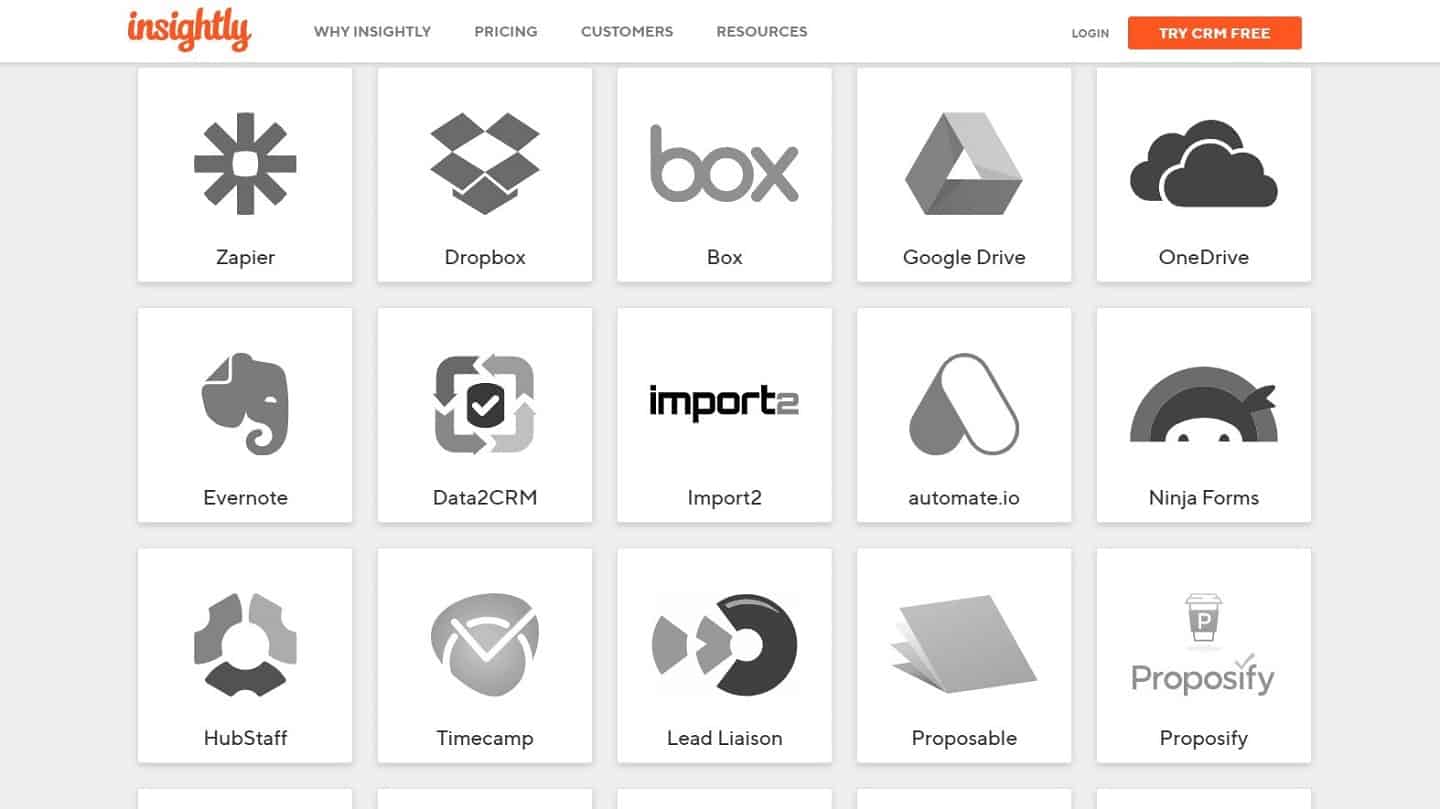
Insightly also integrates with the tools you already use: Slack, Google Apps, Microsoft Outlook, Boomerang, Dropbox, Evernote, Google Calendar, Google Drive, MailChimp, PandaDoc, Proposable, QuickBooks, Xero and Zapier.
For companies with hundreds of users, Insightly also integrates with single sign-on (SSO) tools such as OneLogin, Auth0 or Okta Identity Management.
Finally, the tool also offers iPhone, iPad and Android apps that provide handy tools such as business card scanning.
Sadly, their emailing capabilities fall well short: you can neither send an email from the mobile app nor check whether a recipient has read an email you sent.
#6 Insightly Sell pricing
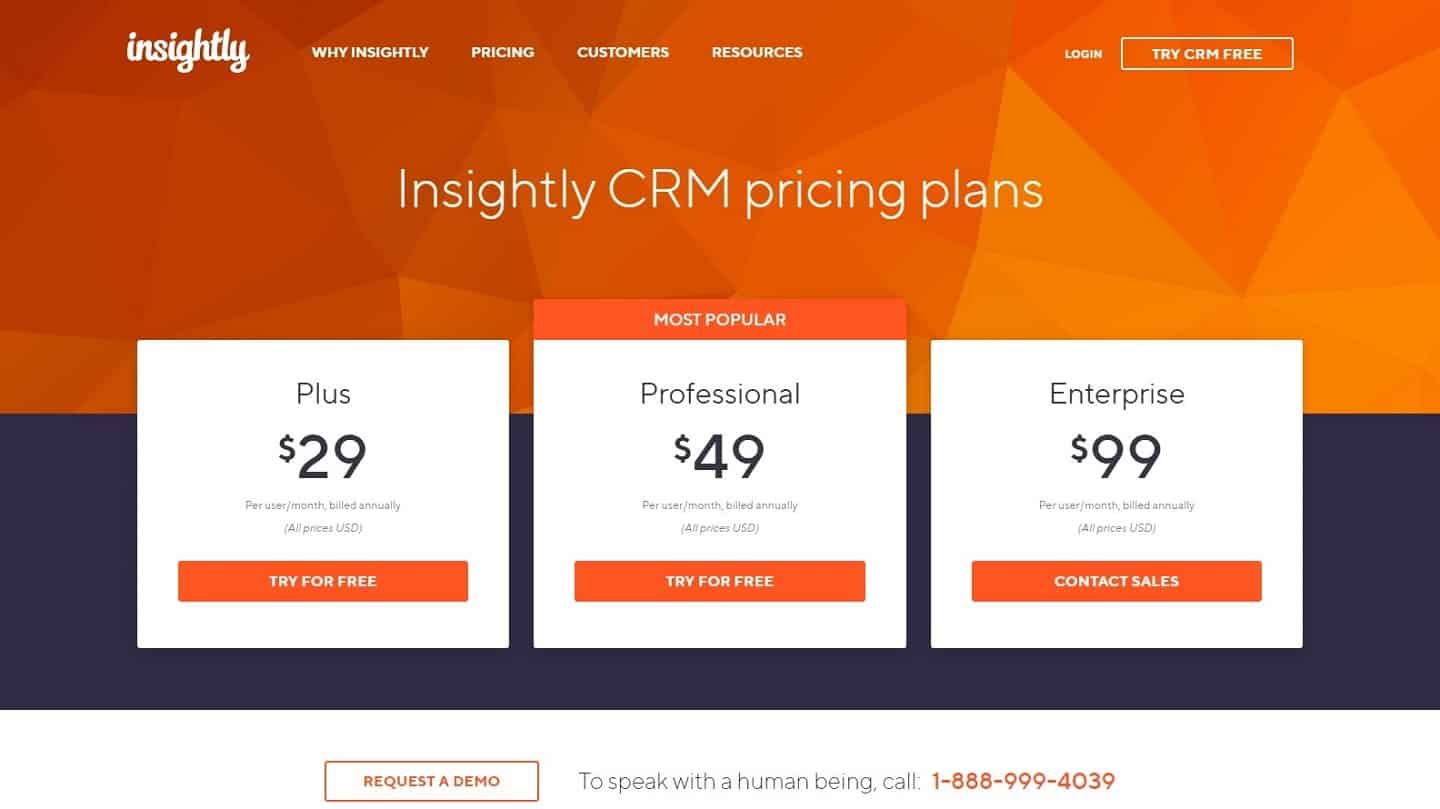
- Plus: the Plus plan starts at $29 per user per month. It is therefore the entry-level price for using Insightly. This package gives you access to the Insightly mobile apps, but also to the Google Docs, Microsoft Calendar, Slack and Gmail integrations. You also get the basics of teamwork, notably calendar syncing and the ability to scan up to 15 business cards.
- Professional: the Professional plan costs $49 per user per month. This is the package from which you can reach all the lead management features, and not only those. You also get opportunity management as well as customisable reports. This is also the package from which you can see precisely which member of the sales team is working on which task.
- Enterprise: finally, the Enterprise plan costs $99 per user per month. All of Insightly’s features are unlocked at last, which gives you access to the full power of the tool. This is where you can create an unlimited number of charts to show your teams where you stand, or unlock the complete set of customer relationship management features.
Insightly also offers a marketing-oriented product. Marketing automation, lead capture and advanced management of your data are all available in one of the 3 plans offered by Insightly Marketing.